 OriusBotHelp center
How do I create and publish a nice message (embed) with the Embed designer?
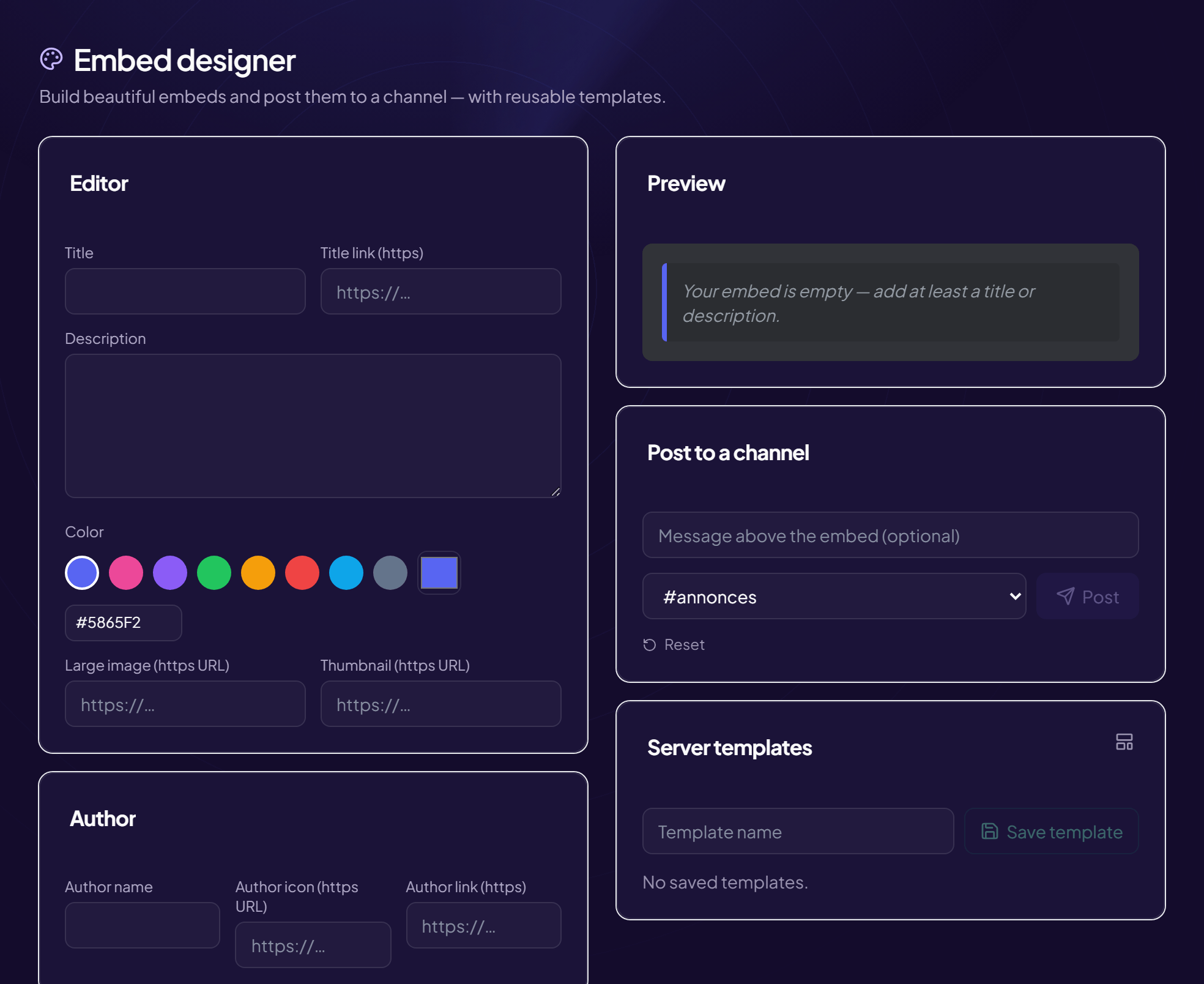
An embed is a formatted Discord message (coloured box, title, images, fields). The Embed designer lets you build one with the mouse, see the result live, then publish it in a channel.
Open the designer
Tools › Embed designer menu. The page has two columns: the Editor and the Preview.
Build the message
| Field | Effect |
|---|---|
| Title | Bold title at the top. E.g. 📢 Valorant tournament on Saturday! |
| Title link (https) | Makes the title clickable. |
| Description | The main text. Accepts Discord formatting: **bold**, *italic*, lists, links, channel mentions. |
| Colour | The vertical bar on the left. |
| Author (name, icon, link) | Small line at the very top, above the title. |
| Large image (https) / Thumbnail (https) | Image at the bottom / small square image at the top right (https addresses). |
| Footer (text, icon) | Small grey text at the very bottom. |
| Show timestamp | Date and time of sending in the footer, in each reader’s local time. |
| Fields | “Title + text” blocks. Add a field, then Name and Value. Tick Inline to put several blocks side by side. E.g. Date | Saturday 8 pm · Format | 5v5. |
Publish
- Check the Preview It updates as you type. An empty embed is refused (“add at least a title or a description”).
- (Optional) Write the “Message above the embed”
Normal text sent above the box. It is the only place where a mention really notifies (
@everyone,@role). E.g. @Players the tournament is coming! - Choose the channel in “Post to a channel”
- Click “Publish” The message “Embed posted ✓” confirms it.
The Reset button empties the editor.
If publishing fails
The panel shows “Sending failed (bot permissions?)”. In Discord, check that OriusBot’s role can View Channel, Send Messages and Embed Links in the target channel.
Mentions in the embed
A mention written inside the embed notifies nobody. Put it in the “Message above the embed”.
Still stuck?
Contact support with the title of this article, the step where you are stuck and what you see on screen.
Contact support More articles: ToolsLast checked: 13 November 2026.