 OriusBotHelp center
How do I publish my server’s listing on the OriusBot public list?
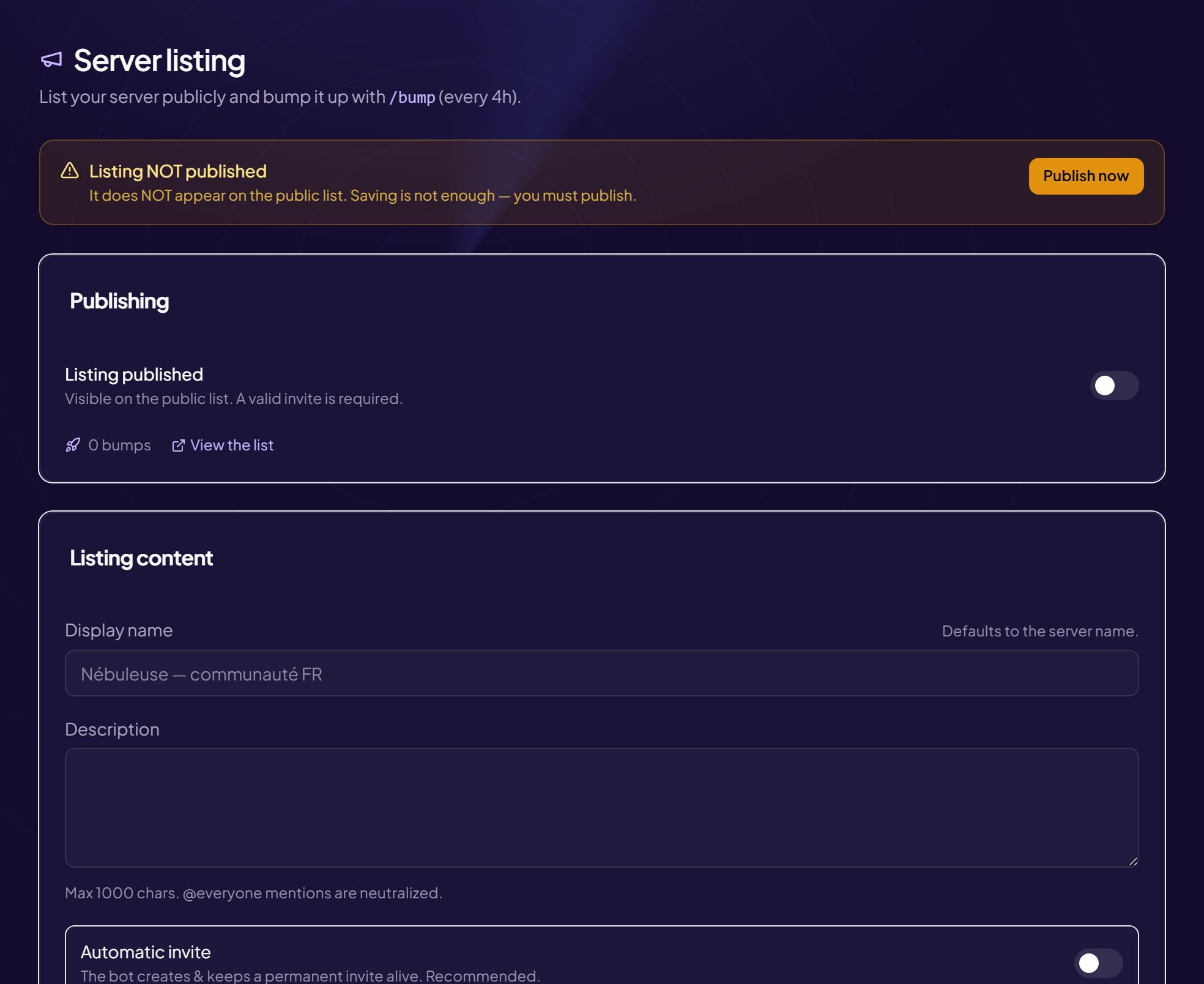
Your server listing is your server’s public page on OriusBot, shown in the public server list. It is a free showcase to attract new members.
Go there
Home › Server listing menu. The bot must be on the server to manage its listing.
Fill in the content
In the Listing content card:
| Field | Effect | Example |
|---|---|---|
| Display name | The big name on the listing. Empty = the Discord server’s current name. | Nebula — French gaming community |
| Description | What it is about, the atmosphere, what you will find. This is what makes people want to join. | Chill community around Minecraft and Valorant. Game nights every Friday. |
| Category | The main theme, to sort the server in the list. | Gaming, Community, Art, Music |
| Tags | Keywords for search. 6 maximum, separated by commas. | minecraft, fr, chill, events |
| 18+ server (NSFW) | Tick it if the content is for adults only. The listing is then hidden behind an age confirmation. Mandatory if it applies. | — |
Publish the listing
- Check the invite A valid invite is required (see the Invite article).
- Click “Publish now” The banner changes from “Listing NOT published” to “Listing published — visible in the public list”. The View link opens the listing.
To work without publishing, use Save draft. To remove the listing from the list, set it back to unpublished: nothing is deleted, the listing is only hidden.
Excluded server
A server that does not comply with the Terms of Service can be excluded from the publishing system. The owner is then notified by private message, and can contact support to ask for a review.
Still stuck?
Contact support with the title of this article, the step where you are stuck and what you see on screen.
Contact support More articles: Overview and serverLast checked: 13 November 2026.