 OriusBotHelp center
Image, text or web captcha: which mode to choose?
The Captcha mode field (Activation and settings card) offers three ways to verify a newcomer.
| Mode | How it works | Good to know |
|---|---|---|
| Image — on the server | The member copies a code read from an image, in the verification channel. | Default mode, free. |
| Text — code in DM | The member receives a simple code in a private message (optional). | Does not work if the member closed their private messages. |
| Web — anti-VPN / proxy | The member opens a web page with several varied challenges and VPN/robot detection. It is the safest. | Reserved for the Pro subscription. The option is greyed out otherwise (“— Pro required”). |
Change mode
- Open the page Protection › Captcha menu.
- In “Activation and settings”, open the “Captcha mode” list
- Choose the mode Saved immediately.
Which one to choose?
| Your situation | Suggested mode |
|---|---|
| Small server, no particular problem | Image. |
| Server regularly attacked by accounts using a VPN | Web (if you have Pro). |
| Your members are comfortable with DMs | Text, as an alternative to image. |
Web mode without a subscription
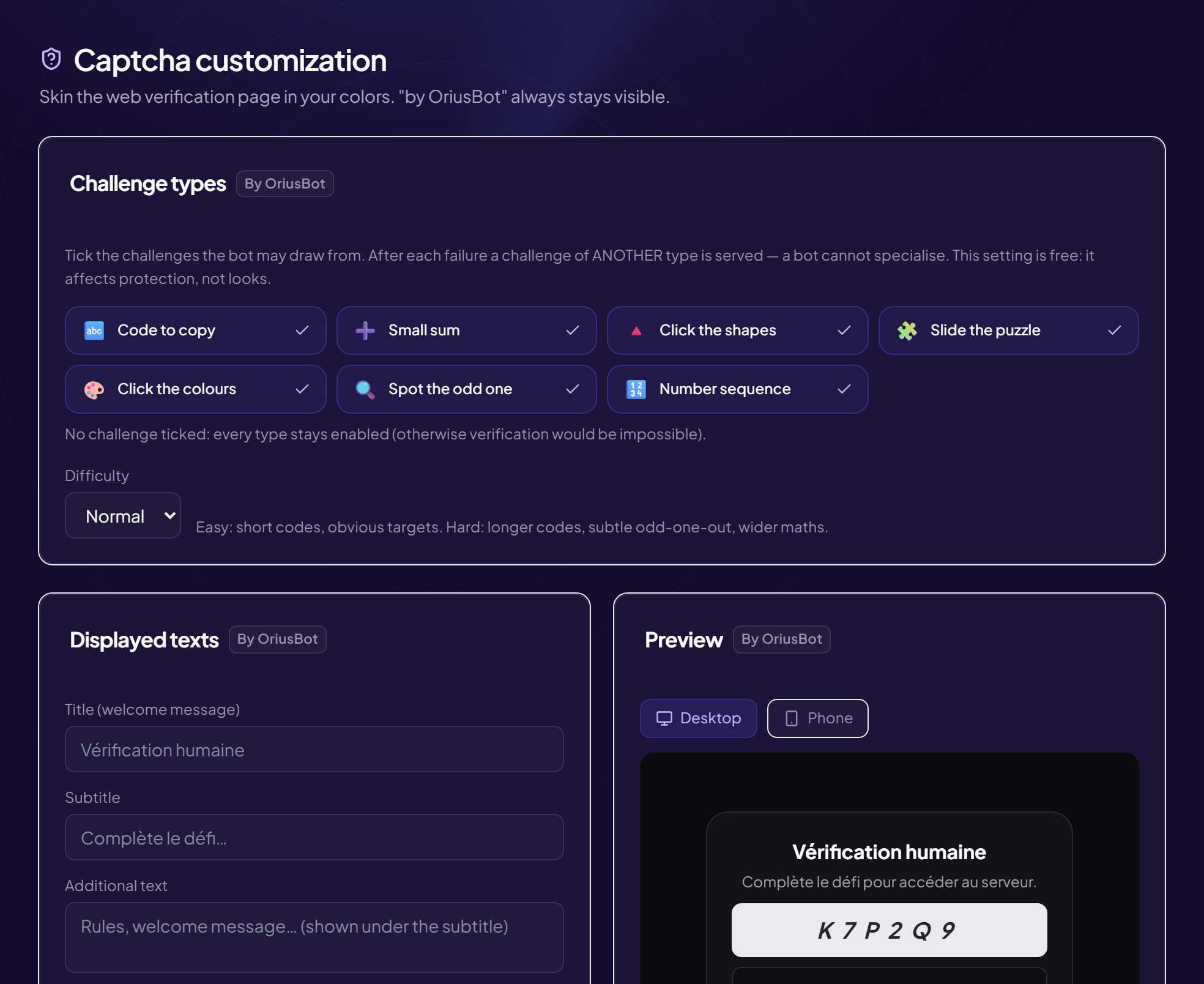
Depending on your server, the “Web” option is greyed out with the Pro mention. The varied challenges of the “Challenge types” card are, however, free: see the article.
Still stuck?
Contact support with the title of this article, the step where you are stuck and what you see on screen.
Contact support More articles: ProtectionLast checked: 13 November 2026.