 OriusBotHelp center
How do I customise the web verification page (title, colours, logo)?
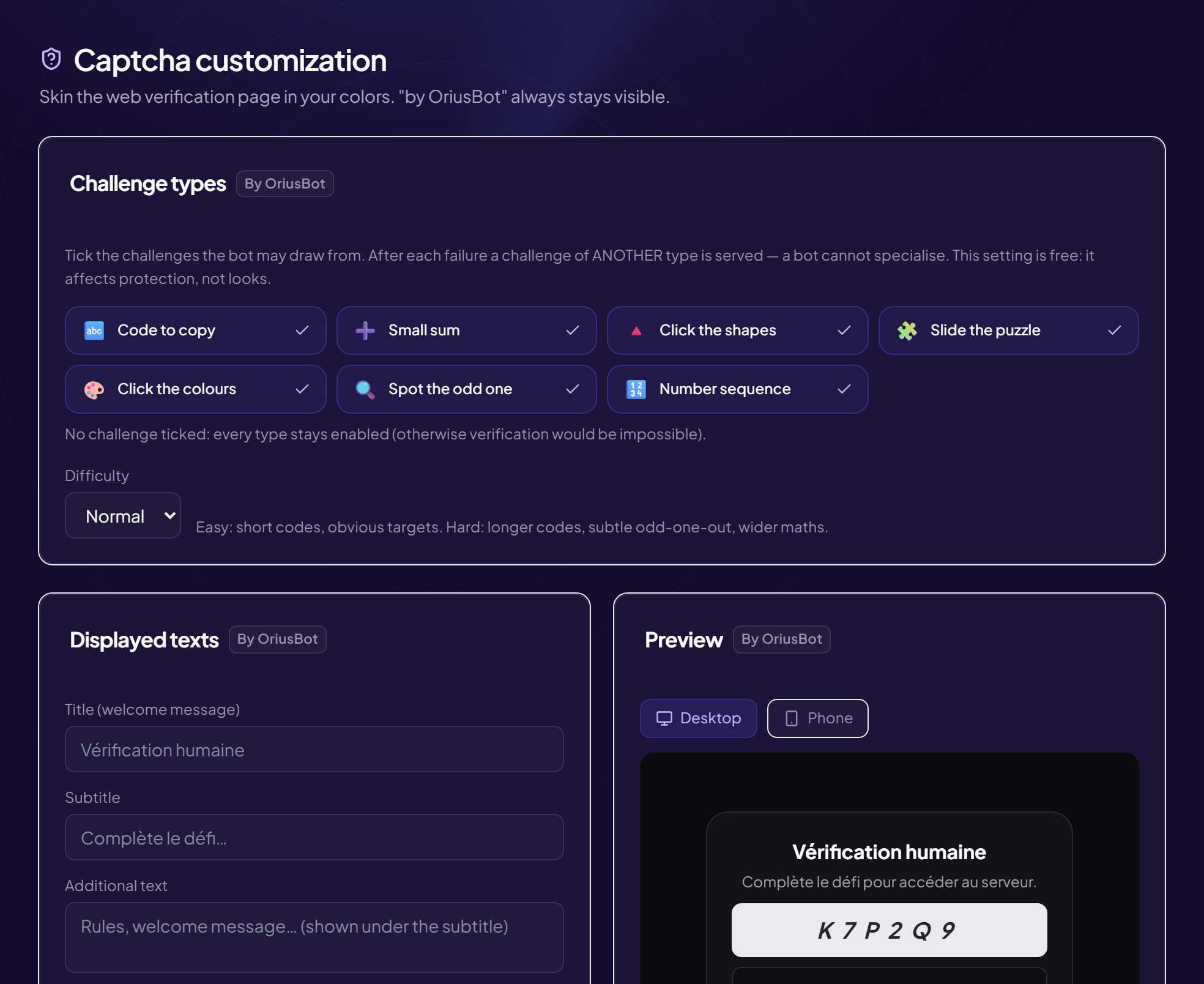
When Web mode is chosen, the member opens a page in your server’s image. This article explains how to customise it. This customisation is reserved for Pro servers: without the subscription, the fields are greyed out (challenge types and difficulty stay free).
Where to set it
Protection › Captcha menu, then the Displayed texts and Appearance cards, under the Web verification page title.
Displayed texts
| Field | What it is | Max length |
|---|---|---|
| Title (welcome message) | The big title at the top of the page. E.g. Welcome to Nebula! | 80 |
| Subtitle | The sentence under the title. E.g. A quick check and you’re one of us. | 160 |
| Extra text | A paragraph under the subtitle: important rules, a welcome word. | 300 |
| Button label | The text of the button that starts the verification. E.g. I am not a robot | 40 |
| Success message | What the member reads once verified. E.g. All good! Go back to Discord, everything is unlocked. | 160 |
Appearance
| Field | What it is |
|---|---|
| Logo URL | https:// address of your logo image (https only). |
| Logo position | Left or right of the card. |
| Background colour | The colour of the whole page. |
| Card colour | The central frame that contains the challenge. |
| Button colour | Buttons and highlighted elements. |
| Corner radius | Slider from 0 (square corners) to 32 (very rounded). |
| Background image URL | https address of an image that replaces the plain colour. |
| Social networks | https links (Twitch, YouTube…) shown as icons at the bottom of the page. |
Save and check
- Fill in the fields you want
- Look at the “Preview” card It updates as you type. Switch between PC and Smartphone to see both renderings.
- Click “Save” The Saved mention appears in green.
Online-hosted image required
The logo and background must be hosted online with an address starting with
https://. An image on your computer does not work.Always “by OriusBot”
The mention stays displayed on the page whatever the setting.
Still stuck?
Contact support with the title of this article, the step where you are stuck and what you see on screen.
Contact support More articles: ProtectionLast checked: 13 November 2026.