 OriusBotHelp center
How do I listen to, download and delete a voice recording?
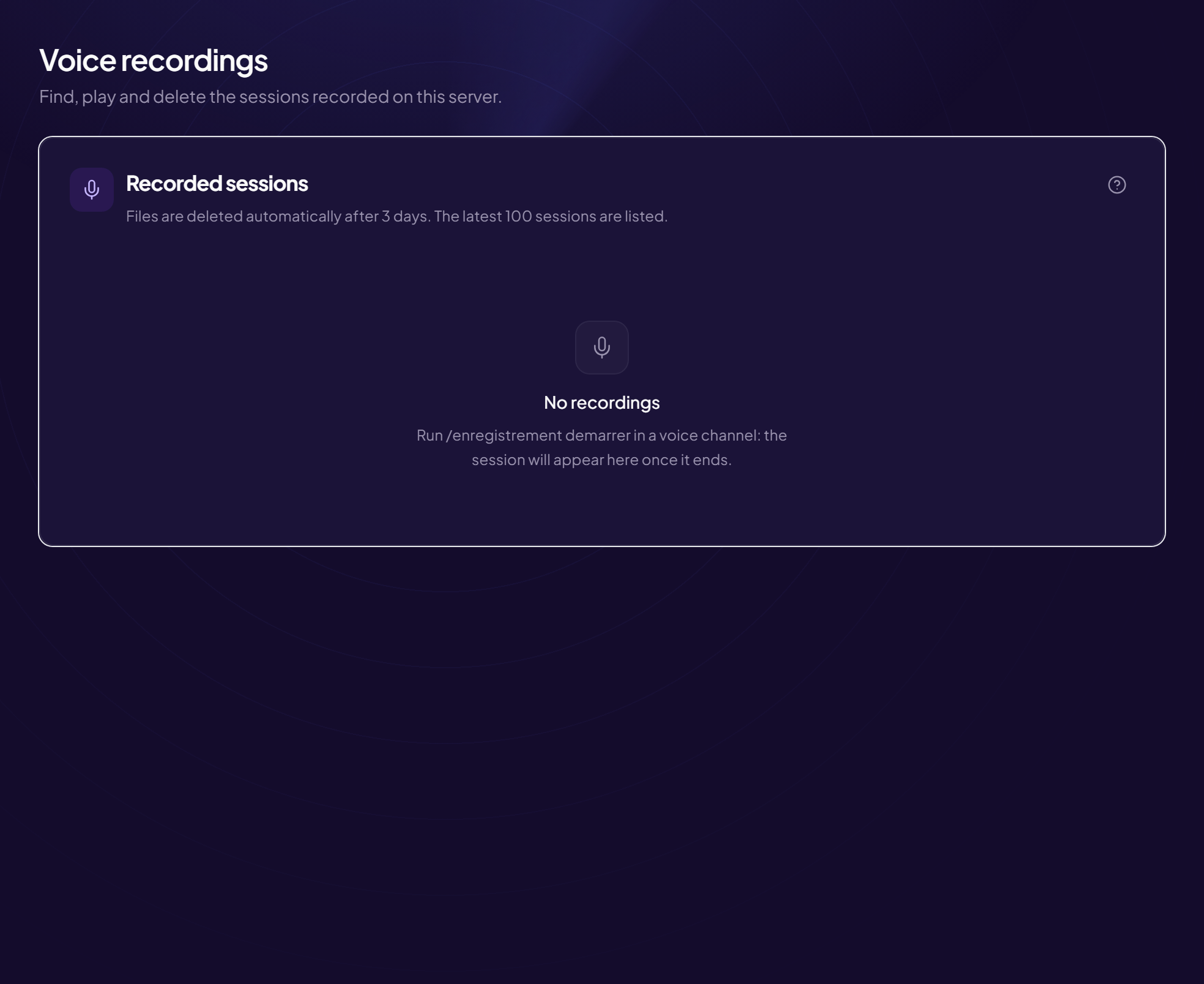
The Recordings page (title: Voice recordings) finds, plays and deletes the sessions recorded on your server.
Go there
Tools › Recordings menu. With no session: “No recording — Run /record start in a voice channel”.
Read the “Recorded sessions” list
- The last 100 sessions are listed.
- Each line shows the channel (or “Deleted channel”), who started the recording (“by”), and its expiry (“Expires today” or “Expires in N days”).
- Files are deleted automatically after the delay shown at the top of the card. A session that has already been purged shows “Files already deleted from the server”.
Listen or watch
- Click “Play” A player opens. For a session with video, a Video button is also offered.
- If the player does not start “Your browser cannot play this file” appears: click Download file and open it with an audio player.
Delete
- Click “Delete” on the line
- Confirm The audio file and the video are permanently deleted from the server. This cannot be undone.
Personal data
A recording contains the voices of identifiable people. Do not share it outside your team without their consent, and delete it as soon as it is no longer useful.
Still stuck?
Contact support with the title of this article, the step where you are stuck and what you see on screen.
Contact support More articles: ToolsLast checked: 13 November 2026.