 OriusBotHelp center
How do I set the category, name and seats of temporary channels?
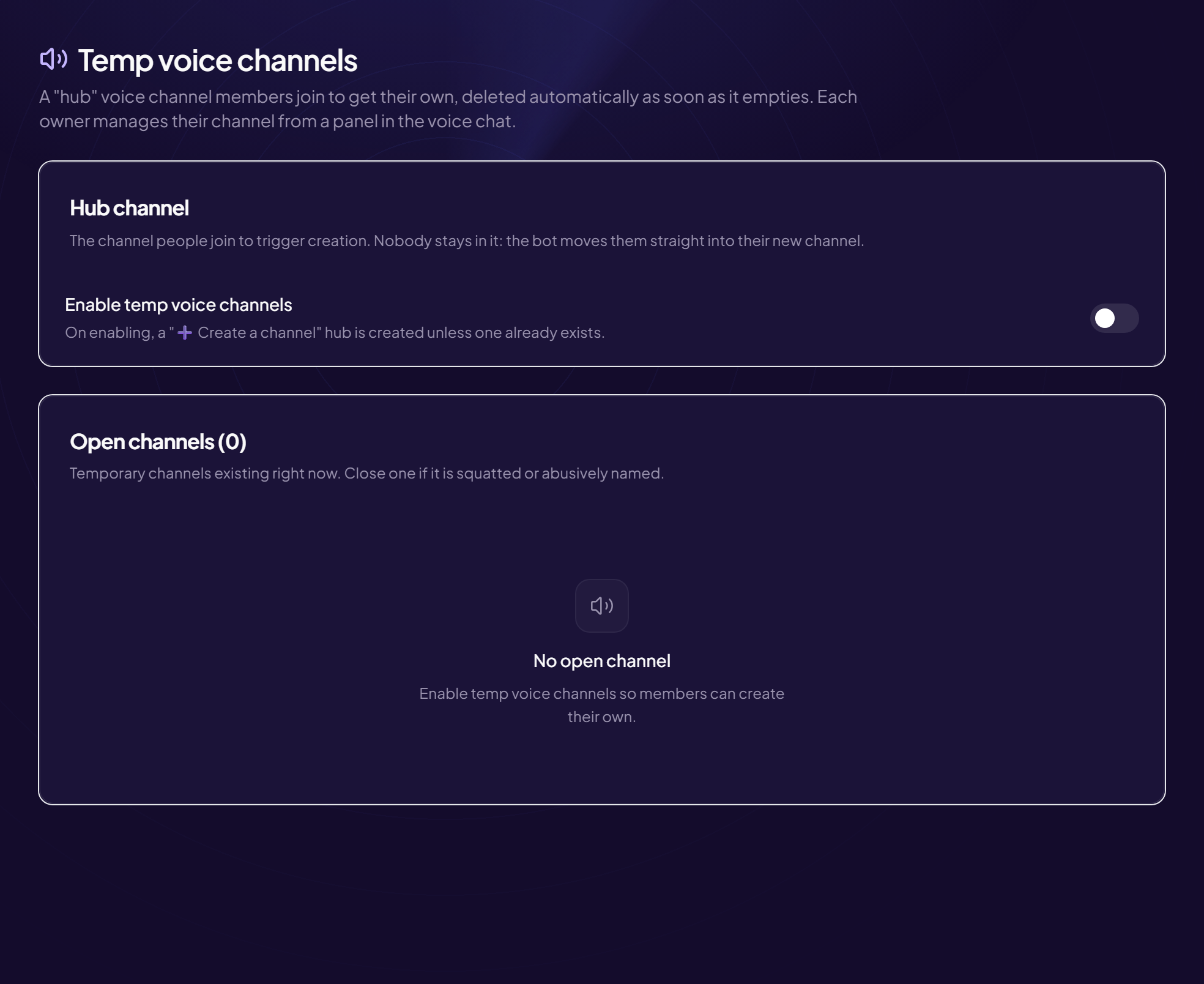
The Created channels card sets up the channels to come. Channels that are already open keep their settings.
| Setting | What it does | Example |
|---|---|---|
| Category | The Discord category where channels are created. Default: “Same category as the hub”. | 📁 PERSONAL CHANNELS |
| Name template | The name given to each channel. {user} = nickname of the member who created it. | 🎮 {user}’s channel → 🎮 PetitLoup’s channel |
| Default seats | Number of seats at creation. 0 = no limit. The owner can change it afterwards. | 5 |
| Create channels locked | Channels are born locked: nobody gets in without an invitation from the owner. | — |
| Send the management panel | The bot posts a panel of buttons in the channel so the owner can manage it (rename, lock, limit, kick someone…). | — |
| Limit the number of channels + Maximum channels at once | Anti-abuse protection: beyond the maximum, the hub refuses to create more. | 20 |
Set them
- Open the page Tools › Temp voice channels menu.
- In “Created channels”, edit the fields you want
- Check the count line When the limit is active, the page shows “N channel(s) currently open out of N allowed”.
Recommended setting
Management panel on (members manage their own channel) and a cap of 20 to 30 channels to prevent abuse.
Still stuck?
Contact support with the title of this article, the step where you are stuck and what you see on screen.
Contact support More articles: ToolsLast checked: 13 November 2026.