 OriusBotHelp center
How do I turn on and use the warning system?
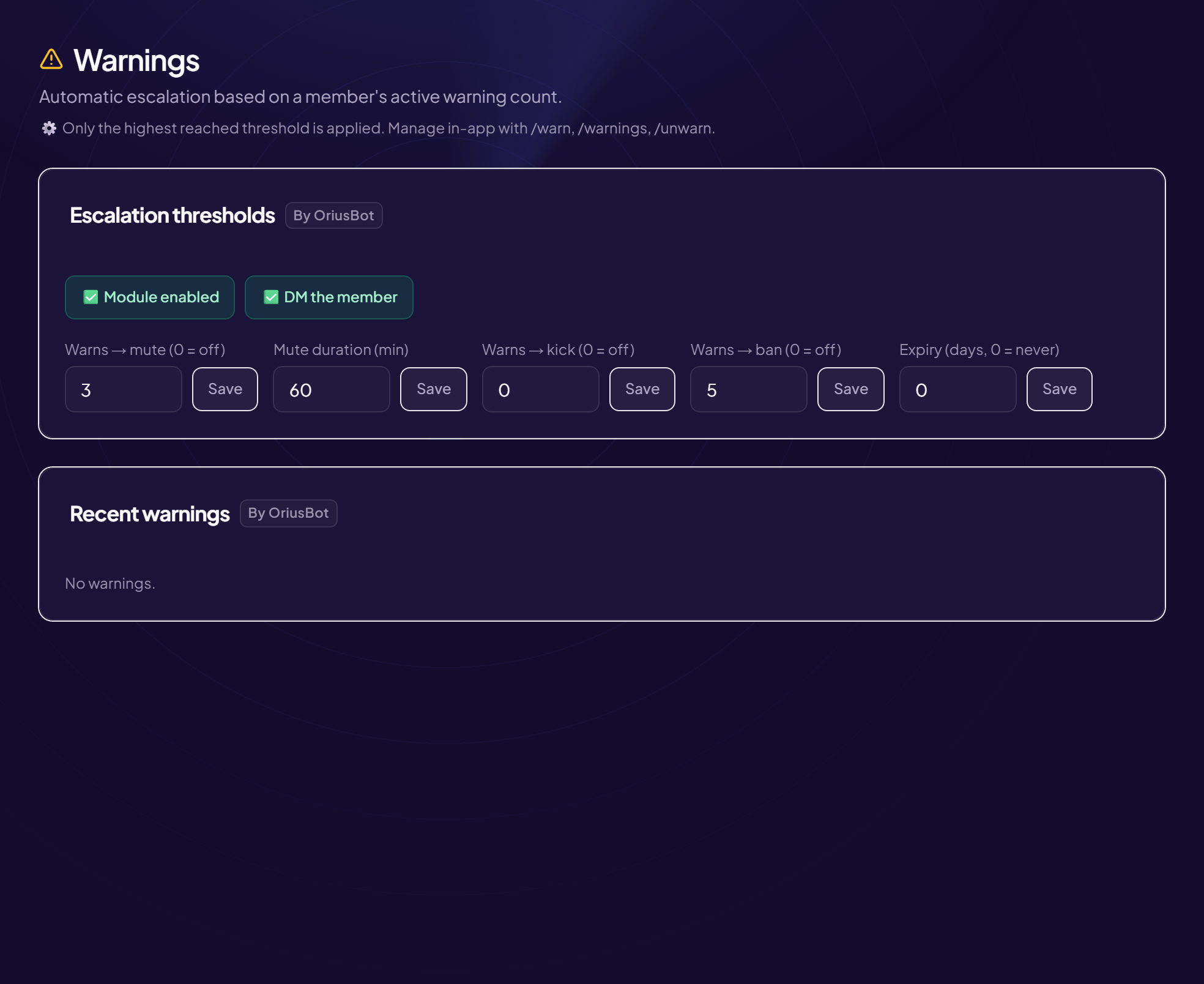
A warning is an official caution given to a member, recorded in their history. When a member builds up several, the bot can sanction automatically (see The escalation thresholds).
Turn the system on
- Open the page Moderation › Warnings menu.
- Turn on “Module enabled” Turns on warnings and the automatic sanctions that follow according to their number.
- Turn on “DM the member” (recommended) The member gets a private message with the reason for each warning.
Give a warning
In Discord, with the /warn command:
- Type
/warn - Fill in
utilisateurThe member to warn (required). - Fill in
raisonOptional, but strongly recommended: it is what the member will read. - Confirm
You need the Discord permission Timeout Members (moderation) to use the command.
See a member’s history
- In Discord:
/warningswithutilisateur(if you leave it out, it is you). - In the panel: the Recent warnings card at the bottom of the page. Each line is marked active or revoked. With no warnings: “No warnings.”
Remove a warning
| Command | Effect |
|---|---|
/unwarn with id | Revokes the warning whose number you give (visible with /warnings). |
/unwarn with utilisateur | Revokes the member’s latest active warning. |
/clearwarns with utilisateur | Clears the member’s warnings. Requires the Manage Server permission. |
Revoked does not mean erased
A revoked warning no longer counts toward automatic sanctions, but stays in the history.
Still stuck?
Contact support with the title of this article, the step where you are stuck and what you see on screen.
Contact support More articles: ModerationLast checked: 13 November 2026.