 OriusBotHelp center
What is each page of the panel menu for?
The panel’s left menu is organised by intent: “I want to protect”, “I want to run activities”… Each section groups a few pages. Here is what each one is for.
Go faster
At the top of the page, the Jump to… field lets you type a word (“welcome”, “ticket”, “sanction”) and open the right page directly. On a computer, Ctrl + K opens it too.
Home
| Page | What it is for |
|---|---|
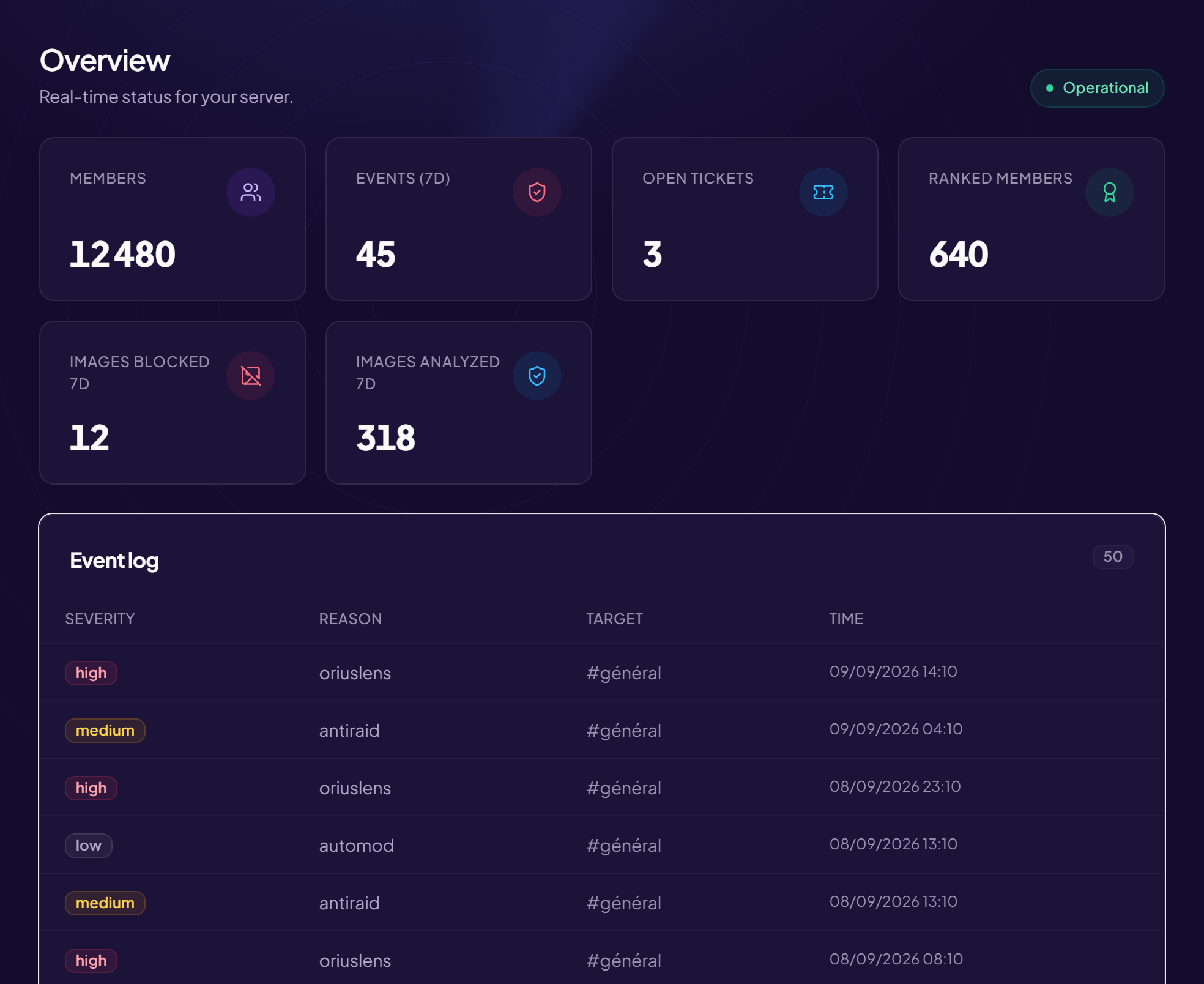
| Overview | Your server at a glance: members, events of the last 7 days, open tickets, language, plan. |
| To handle | What is waiting for a decision from your team. A numbered badge appears in the menu when there are items. |
| Analytics | Figures and charts: activity and growth. |
| Server listing | Your server’s public page (invitation, presentation). |
Protection
What the bot does on its own to filter.
| Page | What it is for |
|---|---|
| Security | Analysis of dangerous links, images and files (scams, viruses). |
| AutoMod | Automatic sanctions: spam, links, insults, banned words. |
| Anti-raid & anti-nuke | Stop a wave of malicious joins or mass deletions. |
| Captcha | Check that each new member is human. |
| Honeypot | A trap channel to catch bots. |
| Server map | A map of your channels and how they are organised. |
Moderation
What your team follows and handles.
| Page | What it is for |
|---|---|
| Warnings | The warning history and the automatic escalation of sanctions. |
| Incidents | Reports, including those coming from other servers. |
| Distress | Spots distress messages (suicide, self-harm) and quietly alerts your team. |
| Logs | The channels where the bot writes what happens, and the tracked events. |
| Audit log | Who did what in the panel. |
Members
A newcomer’s journey, in the order they live it.
| Page | What it is for |
|---|---|
| Welcome & Boost | Welcome message, goodbye, thanks for a boost. |
| Auto-role | Give a role automatically on arrival. |
| Role selectors | Buttons or menus so everyone picks their own roles. |
| Rules | Publish the rules and ask for acceptance. |
| Birthdays | Wish members a happy birthday. |
Engagement, notifications and tools
| Page | What it is for |
|---|---|
| XP & Levels, Shop, Animation, Giveaways, Events | Keep the community lively (Engagement section). |
| Notifications | Alerts when a streamer goes live, a video is released or an RSS feed publishes. |
| Tickets, Temp voice channels, Embed designer, Recordings | The tools of the Tools section. |
Configuration
| Page | What it is for |
|---|---|
| Modules | Turn each bot feature on or off. |
| Commands | Enable, disable or restrict each command. |
| Permissions | Who can use what. |
| Personalisation | The bot’s avatar and description on your server. |
| Settings | General settings (language, time zone…). |
| Pro subscription | Manage your subscription. |
At the bottom of the menu
Switch server takes you back to the list of your servers; Sign out closes your session.
Still stuck?
Contact support with the title of this article, the step where you are stuck and what you see on screen.
Contact support More articles: Getting startedLast checked: 13 November 2026.