 OriusBotHelp center
How do I open the OriusBot admin panel?
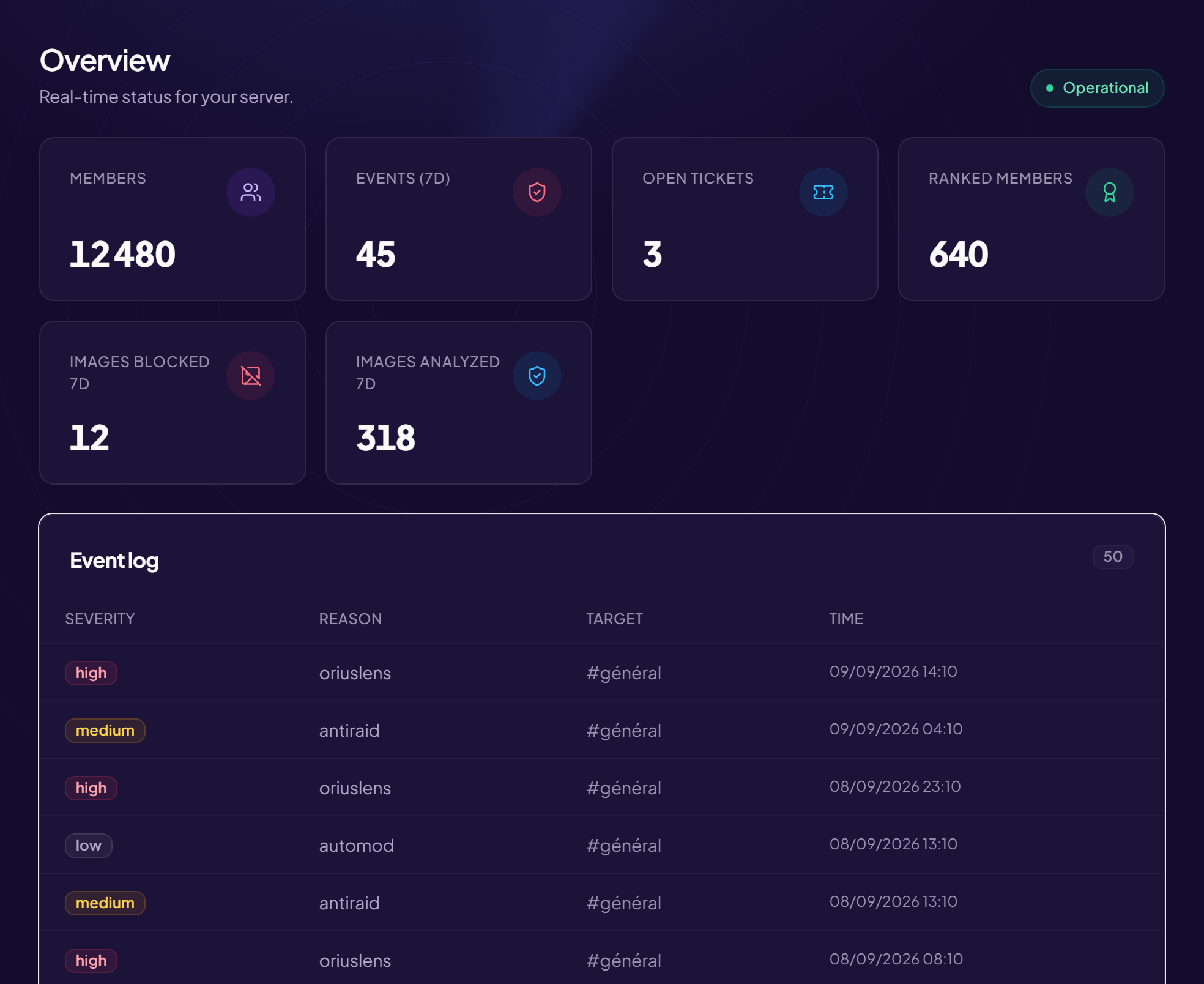
The panel is the website where you configure OriusBot: protection, tickets, welcome messages, notifications… Everything is done with the mouse, no commands to type.
Before you start
The bot must already be on your server (see How do I add OriusBot to my Discord server?) and you must have the Manage Server permission on it. No password is needed.
Sign in
- Go to the sign-in page
Open
oriusbot.com/loginin your browser. The page shows the title Sign in. - Choose what you want to manage The page asks “What do you want to manage?”. For a Discord server, choose A Discord server. (The other choice, A Twitch channel, is for the Twitch chat bot.)
- Click “Continue with Discord” A Discord page opens and summarises what OriusBot asks for: identify your account and see your servers. It does not ask for your password and cannot post anything for you.
- Click Authorize You are brought back to OriusBot automatically.
Choose your server
- Look at the “Select a server” page The Your servers section lists your servers where the bot is installed, with their member count.
- Click the server you want You land on that server’s Overview: the panel’s home.
You manage many servers? A search box appears as soon as the list is long (7 servers or more). Type a few letters of the name to filter.
Server without the bot
Servers where OriusBot is not installed yet are listed lower down, with an Invite button. Click it to add the bot.
Switch server later
At the bottom of the left menu, click Switch server. Your server list appears again and you pick another one. On a phone, first open the menu with the button at the top left.
If it does not work
- My server is not in the list — see My server does not appear in the panel.
- Message “Discord authorization was denied” — you clicked Cancel on Discord. Try again and click Authorize.
- Message “Authentication failed — please retry” — sign-in was interrupted. Close the tab, reopen
oriusbot.com/loginand try once more.
Still stuck?
Contact support with the title of this article, the step where you are stuck and what you see on screen.
Contact support More articles: Getting startedLast checked: 13 November 2026.