 OriusBotHelp center
How do I create a recruitment campaign and set who can apply?
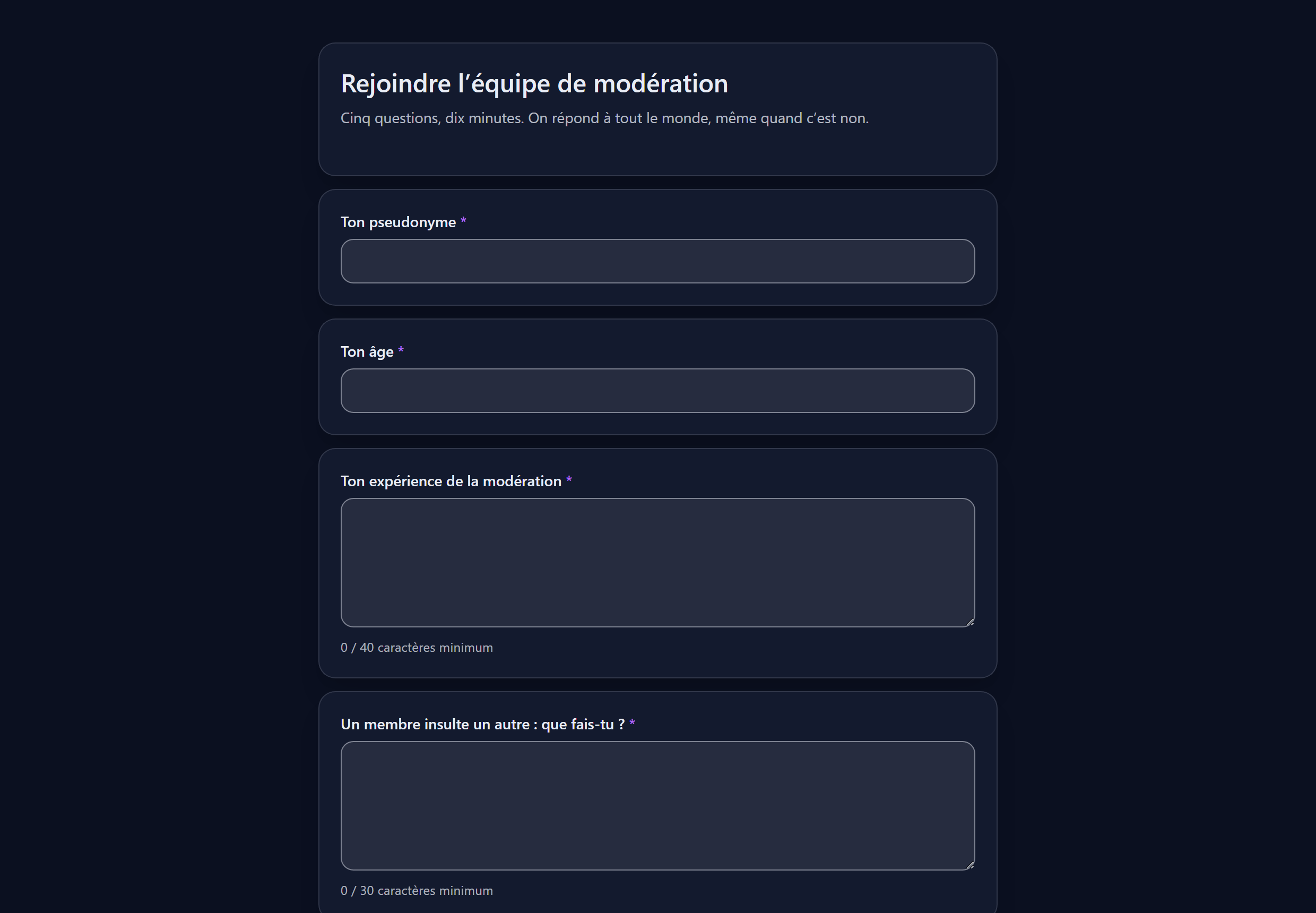
A campaign is one recruitment drive (for example “January wave”) with its own public link.
Create it
- Open the page Recruitment menu of the CRM, Forms tab.
- Click “Create a form” Window title: “New recruitment campaign”.
- Fill in
| Field | Effect |
|---|---|
| Title shown to applicants (required) | The title of the public page. “Title too short” appears if it is not long enough. |
| Campaign name (internal) | For you. E.g. January wave. |
| Public address | The end of the link you will share. |
| Applications close | Past this date, the page closes by itself. Without it, a recruitment drive “we’ll close later” stays open for months and brings in applications nobody reads any more. You can leave it empty. |
- Click “Create the campaign” You will add the questions and the appearance right after.
The campaign settings (“Settings” tab)
| Setting | Effect |
|---|---|
| Target team | The team concerned. “None” = visible to all managers. |
| Who can apply | Filters that rule out accounts created for the occasion without a human having to sort them: Discord account at least (days), On the server for (days), New application after (days), Must be a server member. |
| On acceptance → Role given | The Discord role given to the accepted applicant. It must be in the delegable roles (CRM settings), otherwise a form could hand out the Administrator role. |
| Channel notified of new applications | Where the bot flags each application received. |
| Notify the applicant by DM | Off by default: writing to someone in the server’s name is not trivial. With it on, the “Acceptance message” and “Rejection message” fields are sent. |
Close or delete
- Close: by saving “Closed”, the recruitment drive is over; its applications leave tracking and move to the archives. The bot keeps track of who has already applied.
- Delete the campaign: applications already received are kept (a decision made about someone is not erased), but the public page stops responding.
Still stuck?
Contact support with the title of this article, the step where you are stuck and what you see on screen.
Contact support More articles: RecruitmentLast checked: 13 November 2026.