 OriusBotHelp center
CRM settings: opening, delegable roles, inactivity, trial period, streamer mode
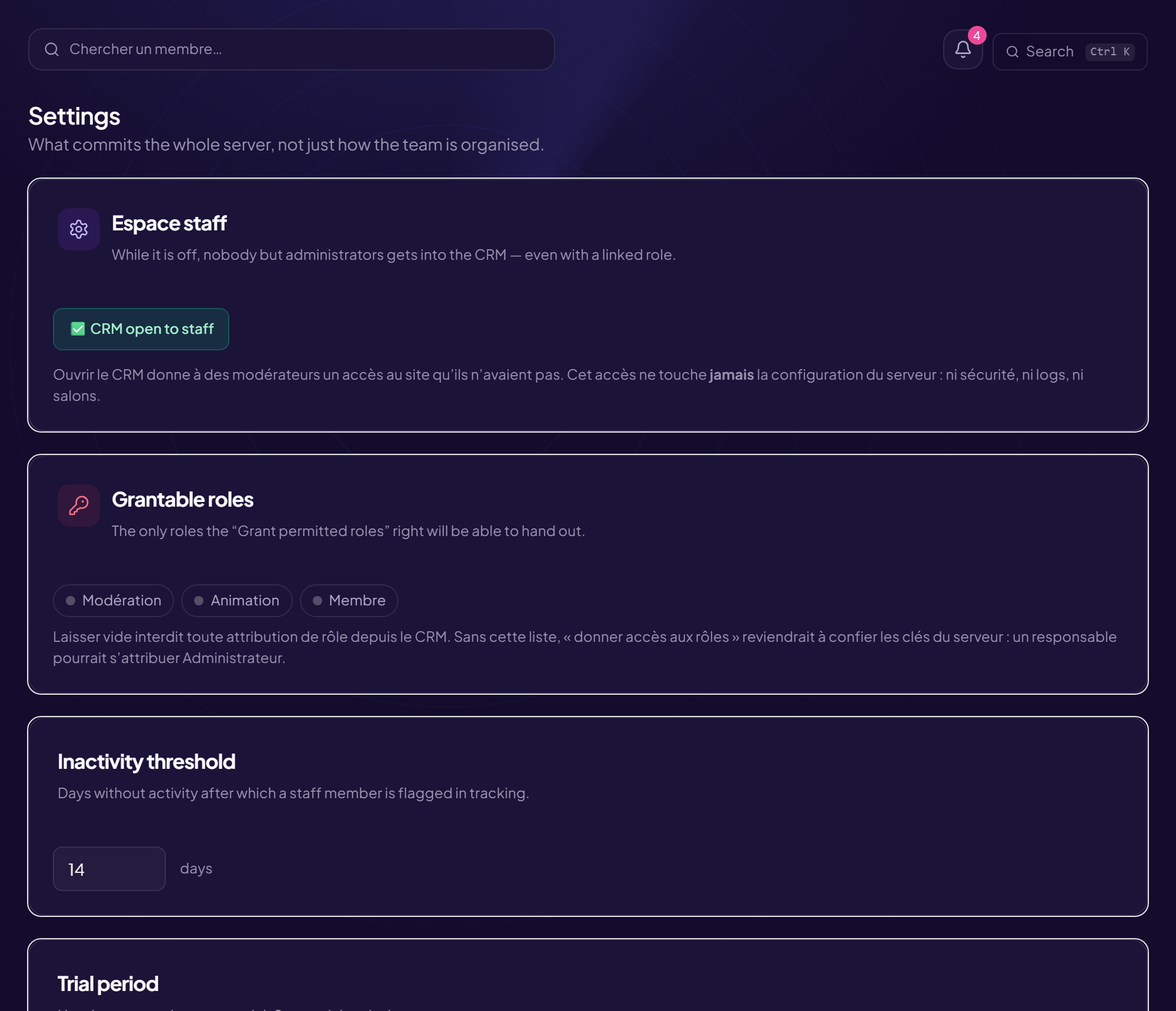
The CRM Settings page groups what commits the entire server, not just how the team is organised. Only a server administrator can change them; everyone else sees the “Read-only” label.
CRM open to staff
Switch CRM open to staff / CRM closed. While it is off, nobody gets into the CRM except administrators, even with a linked role. Opening the CRM gives moderators access to a site they did not have, but never to the server’s configuration (no security, no logs, no channels).
Delegable roles
The list of the only roles that the “Grant the allowed roles” permission will let people hand out. Leaving it empty forbids any role assignment from the CRM. Without this list, “giving access to roles” would amount to handing over the keys to the server: a manager could give themselves Administrator. Only administrators edit this list.
Inactivity threshold
Number of days without activity beyond which a staff member is flagged “quiet” in tracking. See Activity.
Trial period
Length (in days) during which a recruit is on trial. 0 = no trial period. See the dedicated article.
Streamer server
Turn it on when the team also moderates streams. The schedule stops being weekly: a slot can carry a date, be anchored to a real live stream, or have no time at all.
- Linked channel: if the bot follows its streams, it notes the start, the end and who runs the chat. “Linked, but the bot is not following it yet” indicates a channel that is paused or waiting to be opened.
- No linked channel: it is the streamer themselves who must link it (they must own the channel and have “Manage Server”): 1) they authorise their Twitch channel; 2) in the Discord tab of their space, they choose this server then save. Button: I am the streamer — link my channel.
Still stuck?
Contact support with the title of this article, the step where you are stuck and what you see on screen.
Contact support More articles: Permissions and rolesLast checked: 13 November 2026.