 OriusBotHelp center
How do I offer several types of tickets (themes) in one panel?
A theme is a type of ticket (Complaint, Report a player, Partnership…). When a panel has several themes, the member chooses one before opening.
How the member chooses
The panel’s View setting offers two presentations:
- Dropdown: a list to unfold (handy beyond 5 themes);
- Buttons: one button per theme, more visible.
Create a theme
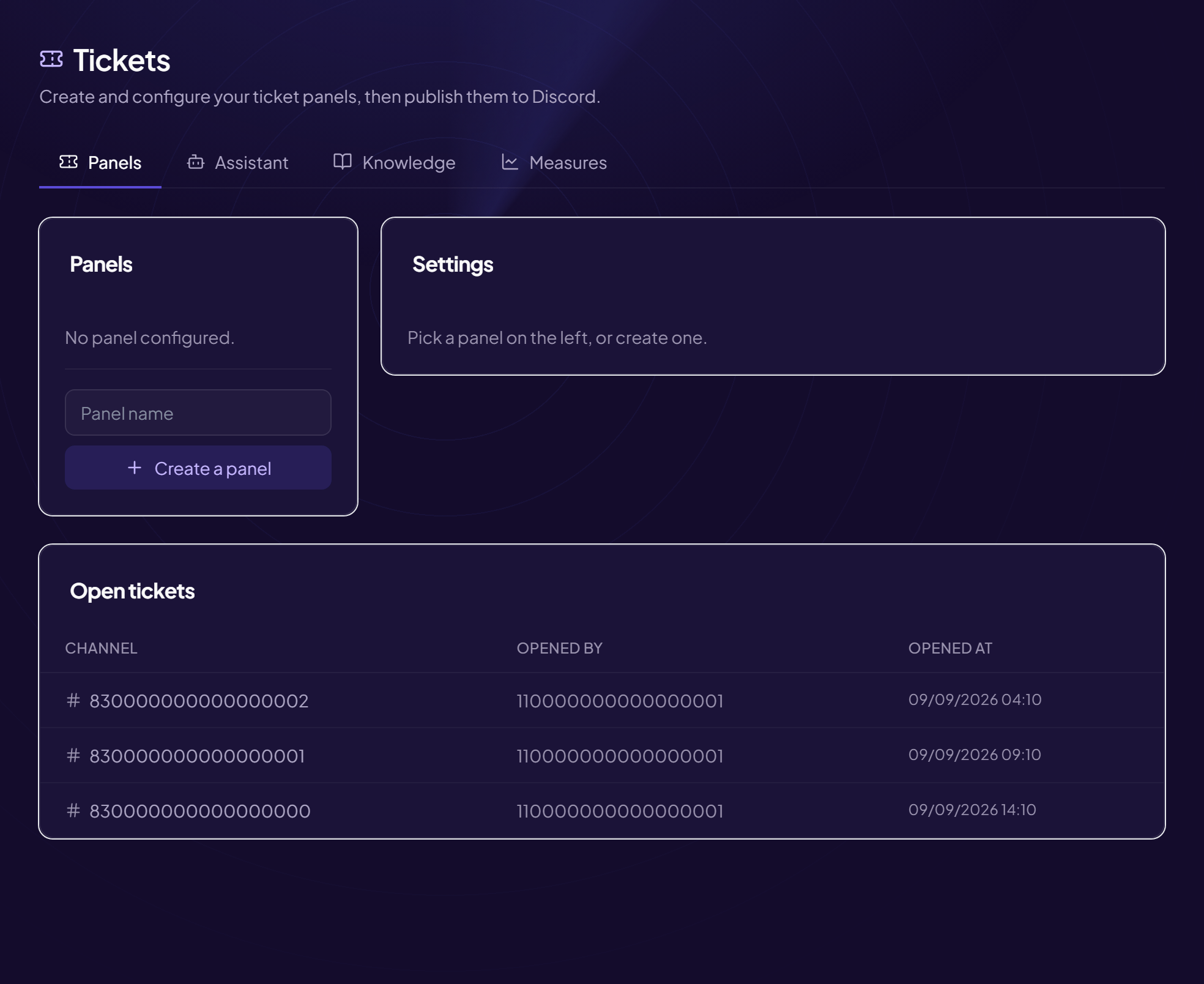
- Open the panel Tools › Tickets menu, Panels tab.
- Add a theme and fill in its fields
| Field | Effect | Example |
|---|---|---|
| Theme name | The name shown on the button or in the menu. | Complaint |
| Emoji | Shown in front of the name. A standard emoji or a server emoji in the <:name:id> format. | ⚠️ |
| Slug | A short word used to name this theme’s channels (spaces → hyphens). Replaces {theme}. Empty = the theme’s name. | complaint |
| Description | Grey sentence under the name, only visible in dropdown mode. | A purchase, a refund… |
| Category | The Discord category for this theme’s channels. “(panel’s)” = same as the others. | 📁 COMPLAINTS |
| Staff roles | The roles that handle this theme only. Empty = the panel’s. | @Accounting |
| Welcome message | First message in this theme’s ticket. Replaces the panel’s. | {user}, please give your order number. |
- Update the panel message Click Update the message so the themes appear on Discord.
Keep few themes
Four or five are enough. Too many choices lose members, who pick at random.
Still stuck?
Contact support with the title of this article, the step where you are stuck and what you see on screen.
Contact support More articles: ToolsLast checked: 13 November 2026.