 OriusBotHelp center
How do I create and publish my first ticket panel?
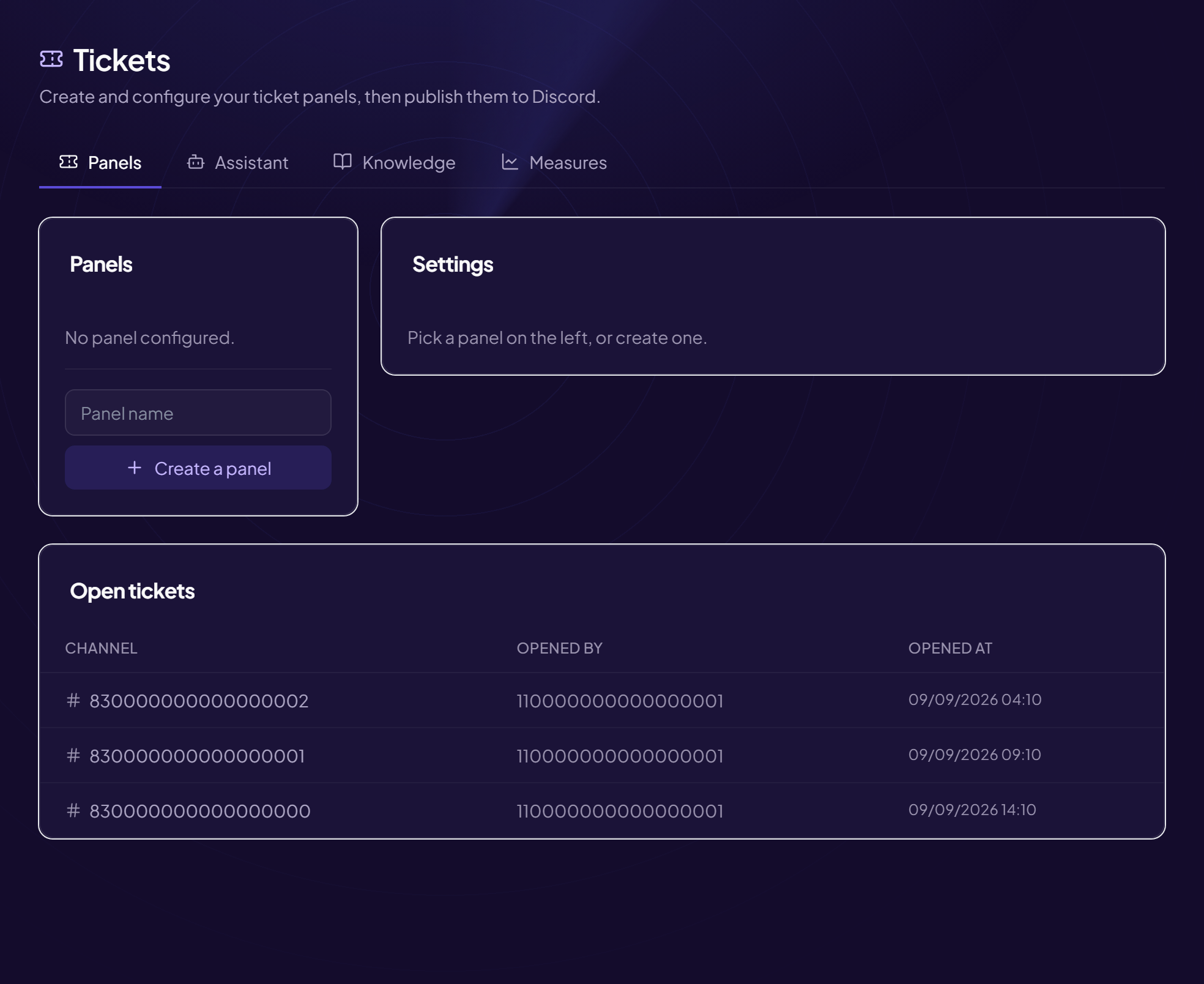
Here is the complete procedure to get tickets working. Allow ten minutes.
Prepare Discord
- Create a category for tickets
For example
📁 TICKETS. This avoids cluttering the rest of the server. - Create a staff-only log channel
For example
#ticket-logs. - Create the channel where the button will be
For example
#support, visible to everyone.
Create the panel
- Open the page Tools › Tickets menu, Panels tab.
- Click “Create a panel”
Type the “Panel name” (
Support,Recruitment…). It is the internal name, which also serves as the message’s default title. - Open the panel you created and set the “Settings”
| Setting | Value to choose |
|---|---|
| Panel channel | The channel where the bot posts the “Open a ticket” button (#support). |
| Staff role | The roles of your team who see all tickets of this panel, answer them, claim them and close them. Other members only see their own ticket. |
| Tickets category | The category where the ticket channels will be filed (📁 TICKETS). |
| Log channel | The channel where the bot notes each opening and closing, with the transcript if enabled. |
| Transcript on close | On closing, the conversation is saved in a file sent to the log channel. Useful for keeping proof. |
| Ping staff on open | The bot mentions the staff roles in the ticket so they get notified. Turn it off if it is too noisy. |
Publish
- Click “Publish” The bot posts the message with the button. The “Panel published on Discord” message confirms it, and the panel goes from Draft to Published.
- Test With a second (non-staff) account, click the button, then check that the ticket opens and that staff can see it.
Edit after publishing
Change a text setting (title, description, button…), then click Update the message so Discord reflects the change. Operating settings (closing, reminders) apply immediately.
The bot must be able to create channels
It needs the Discord Manage Channels and Manage Roles permissions (to reserve each ticket for its author and the staff). See troubleshooting.
Still stuck?
Contact support with the title of this article, the step where you are stuck and what you see on screen.
Contact support More articles: ToolsLast checked: 13 November 2026.