 OriusBotHelp center
How do I add a welcome image (a card with the member’s photo)?
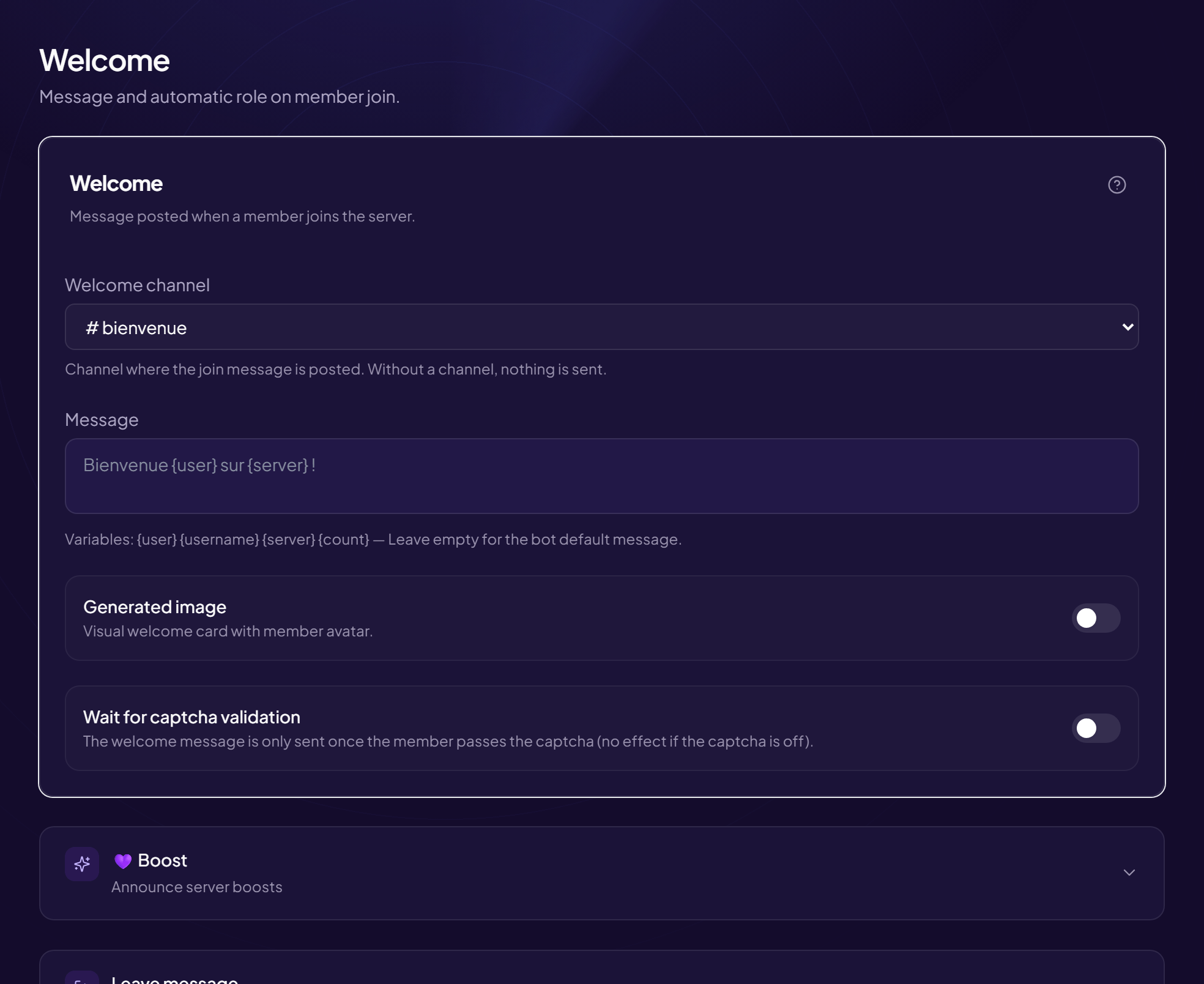
The image card adds a generated image to your welcome message: the member’s profile picture, placed on a card with a title.
Turn it on
- Open the page Members › Welcome & Boost menu.
- Turn on “Generated image” A visual welcome card with the member’s avatar. Once it is on, its look is set just below.
Customize the card
In the Card customization area:
| Field | What it is | Example |
|---|---|---|
| Title | The big text written on the image. {username} and {server} work. | Bienvenue {username} ! |
| Subtitle | The small line under the title. | Tu es le {count}e membre de {server} |
| Background image (URL) | Address of a background image hosted online. | — |
| Font | The text font. | — |
| Show “Bienvenue · Welcome · Bienvenido · Willkommen” | Shows “Welcome” in several languages at the top of the image. Handy for an international server. | — |
Don’t forget to click Save at the bottom of the page.
Background image
The address must point to an image that is reachable online. An image that does not load does not appear in the card.
No emoji in the card title
Emojis do not always show up in a generated image. Keep the title in plain text.
Still stuck?
Contact support with the title of this article, the step where you are stuck and what you see on screen.
Contact support More articles: Welcoming membersLast checked: 13 November 2026.