 OriusBotHelp center
What is the “AutoMod” page for and where do I start?
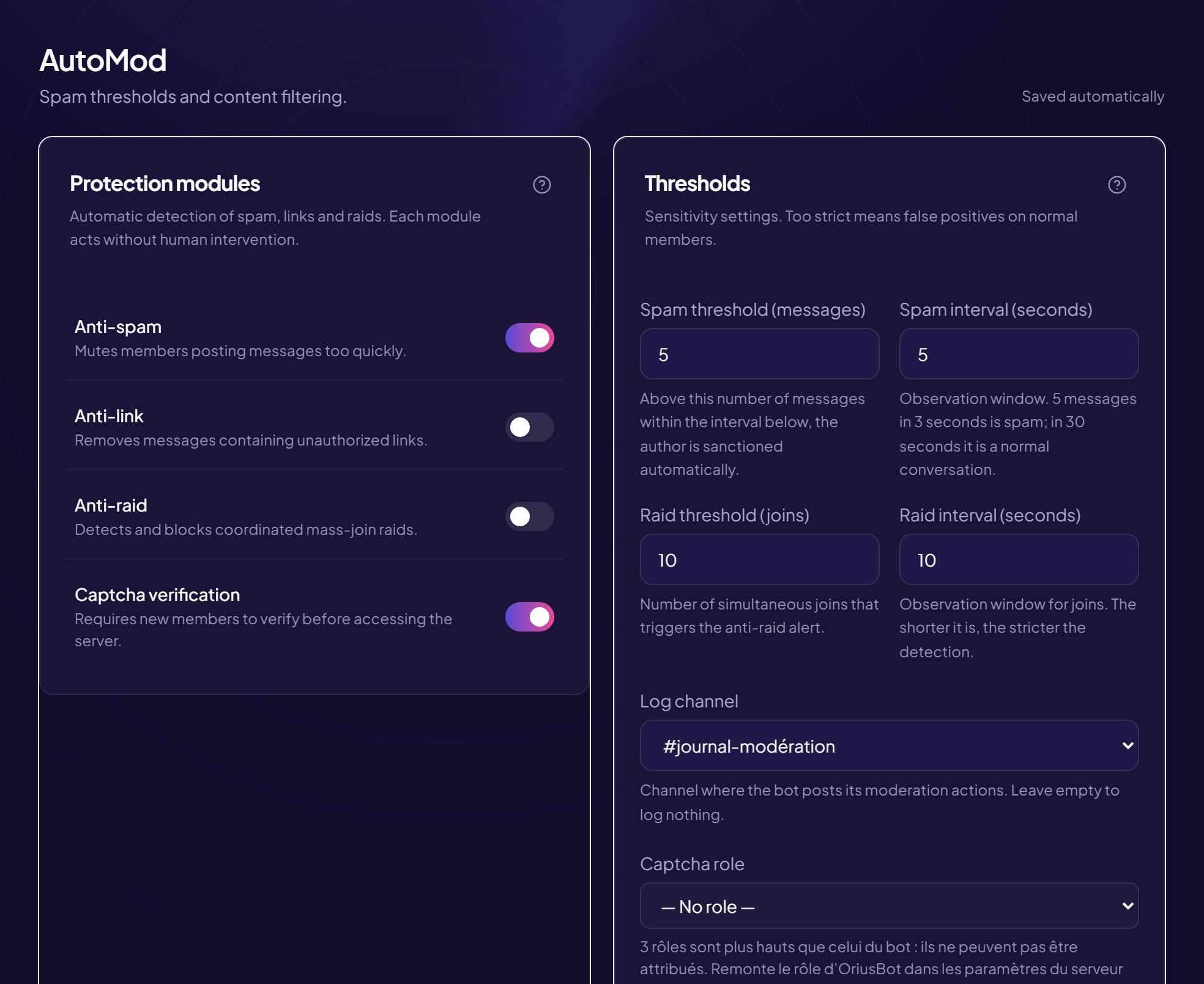
The AutoMod page sets up automatic moderation: the bot spots unwanted behaviour (spam, links, insults) and acts on its own, without waiting for a moderator. Displayed title: AutoMod — Anti-spam, anti-links, AI moderation and sanctions.
Get there
Left menu, Protection section, then AutoMod. As everywhere in the panel, every change is saved immediately: a saving indicator shows at the top right.
The four cards
| Card | What it is for | Article |
|---|---|---|
| Protection modules | Two switches: Anti-spam and Anti-link. | Anti-spam, Anti-link |
| Thresholds | Spam sensitivity and the channel where the bot notes what it does. | Anti-spam, Log channel |
| AI moderation | An AI reads messages to spot insults, harassment, threats. | Turn on AI |
| Automatic sanctions | What the bot does depending on the problem spotted, plus repeat offences and exemptions. | Sanctions |
In what order should I set things up?
- Choose a log channel Without it, you will never see what the bot did. See the article.
- Turn on anti-spam The least risky protection for honest members.
- Set the sanctions Keep the default values until you have watched the bot.
- Plan exemptions Roles and channels the bot should leave alone (staff, a partnerships channel). See the article.
- Try the AI in alert mode It warns your team without deleting anything. See the article.
Where did captcha and anti-raid go?
They had settings on this page; they now have their own page each, with two quick links at the top of AutoMod: Captcha and Anti-raid & anti-nuke.
A principle of caution
OriusBot ships with gentle sanctions (warning, deletion). Toughen them yourself, after seeing what the bot does on your server.
Still stuck?
Contact support with the title of this article, the step where you are stuck and what you see on screen.
Contact support More articles: ProtectionLast checked: 13 November 2026.