 OriusBotHelp center
How do I set my server’s time zone?
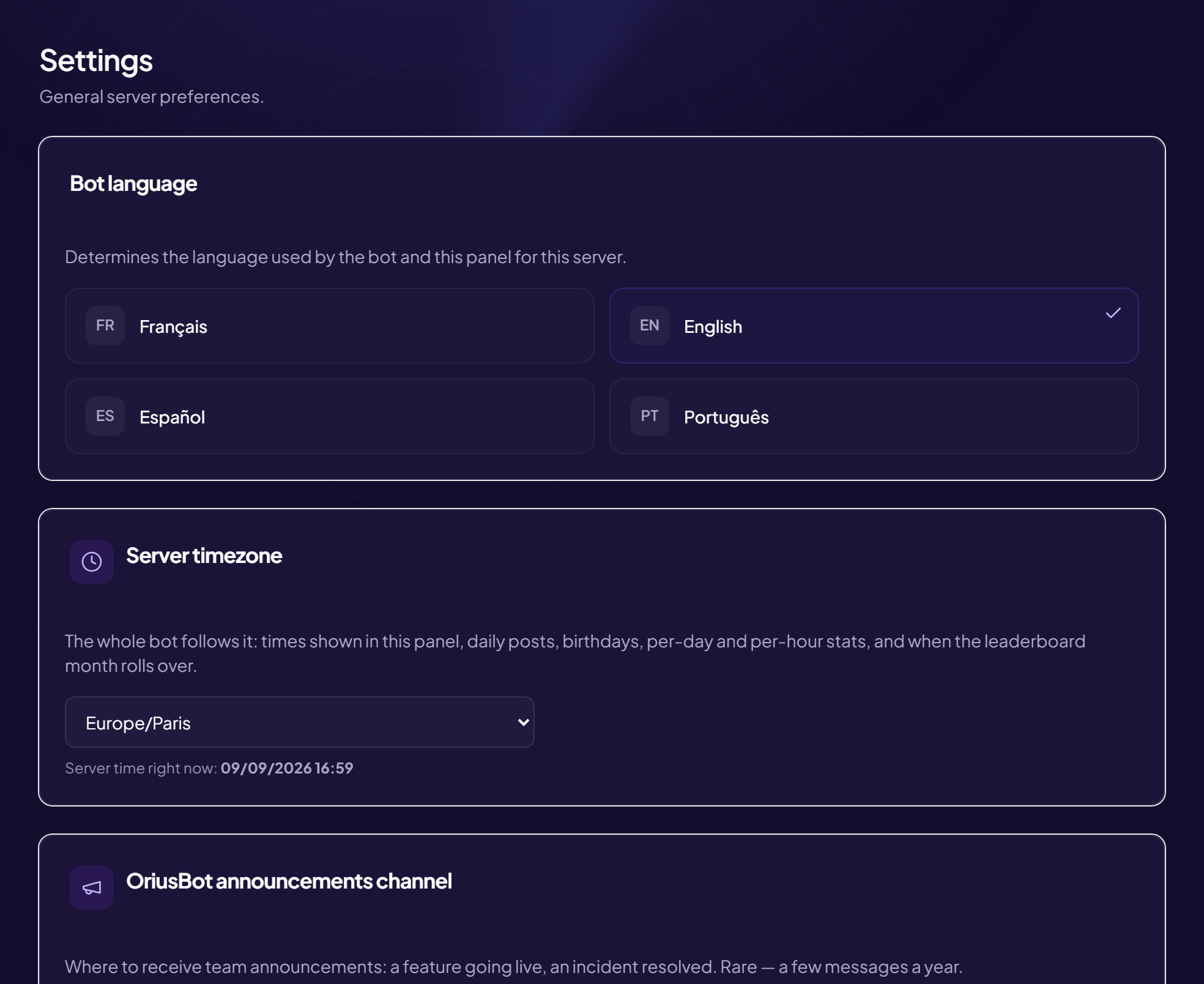
The whole bot refers to a single time: your server’s time zone. If it is wrong, daily announcements go out too early or too late and birthdays change day at the wrong moment.
What the time zone controls
- the times shown in the panel;
- daily announcements;
- birthdays;
- statistics per day and per hour;
- the moment the leaderboard month rolls over.
Set it
- Open Settings Left menu, Configuration section, then Settings.
- Find the “Server timezone” card It contains a drop-down list.
- Open the list and choose your time zone
Common time zones come first, under Common timezones (for example
Europe/Paris). The others are lower down, under All timezones. - Wait for the reload The choice is saved as soon as you select it, then the page reloads to redisplay dates in the new time zone.
- Check the time Under the list, the Server time right now line must show your local time. If not, choose another time zone.
Which one to choose?
Take the one where the majority of your members live. For mainland France, that is
Europe/Paris; for Brazil, America/Sao_Paulo.If it does not work
- The displayed time is not yours — choose the time zone of your city or region (
Europe/Paris,America/Montreal…) rather than a neighbouring one: offsets and summer/winter time changes differ from country to country. - The list is greyed out — the panel is saving. Wait a second.
Still stuck?
Contact support with the title of this article, the step where you are stuck and what you see on screen.
Contact support More articles: ConfigurationLast checked: 13 November 2026.