 OriusBotHelp center
How do I sign up for a slot and read the week’s coverage grid?
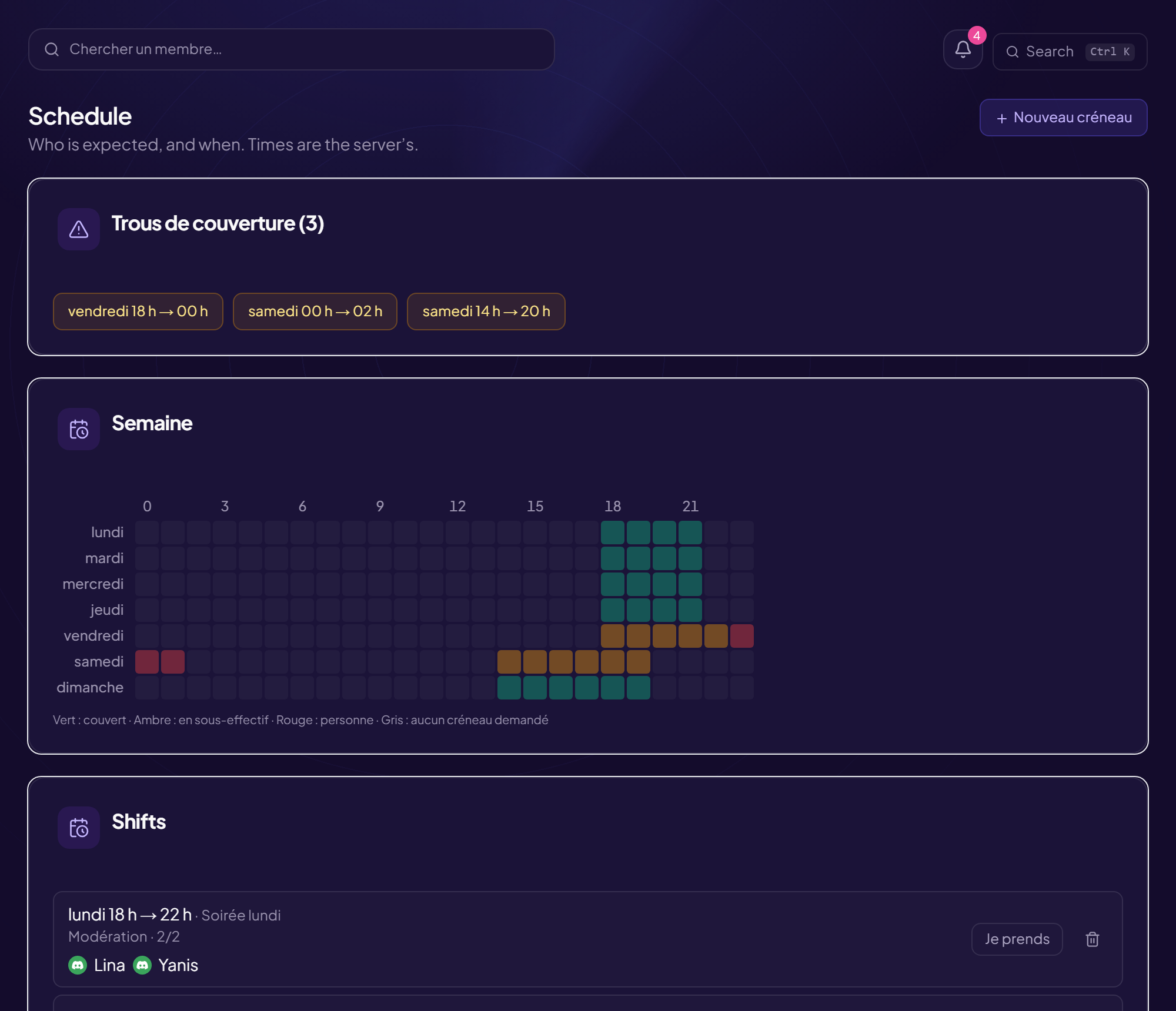
All staff read the schedule and sign up to it: a schedule that only managers look at never fills up.
Sign up for a slot
- Open the Schedule page
- Find the slot It shows the number of people signed up, and “N missing” if it is understaffed.
- Click “I take it” (or I take this part) To withdraw: I withdraw.
Covering only part of a slot
Can you only cover part of the slot? Choose “Only part of it”, with from and to: someone else will take over. Change my part edits it.
Navigate
The grid shows one week (“from … to …”). Buttons: Previous, Next, Back to this week. Days are numbered starting from Monday.
Read the colours
| Colour | Meaning |
|---|---|
| Green | Covered |
| Amber | Understaffed |
| Red | Nobody |
| Purple | No fixed headcount (darker: someone is signed up) |
| Grey | No slot |
Coverage gaps
The Coverage gaps card lists the slots where people are missing (or “All requested shifts are covered.”). The Coverage line sums up the rate.
Sign up early
A red slot on Thursday is hard to fix on Friday. And if you will be away, declare it beforehand.
Still stuck?
Contact support with the title of this article, the step where you are stuck and what you see on screen.
Contact support More articles: Schedule and absencesLast checked: 13 November 2026.