 OriusBotHelp center
How do I declare time off and how do I approve it?
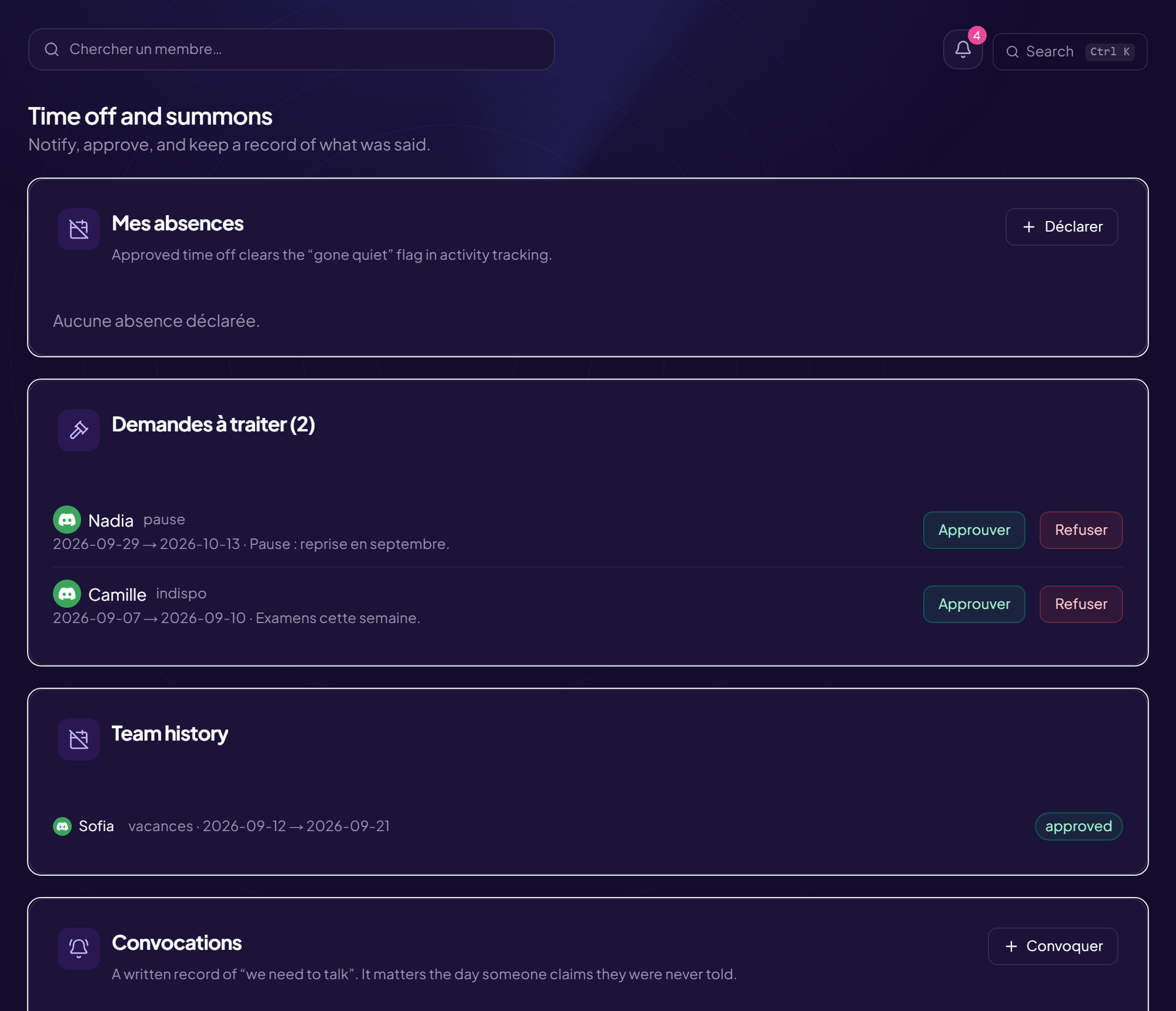
Giving notice in advance avoids being counted as “silent” over a period when you were simply not there. Approved time off switches off the “silent” signal in activity tracking.
Declare time off
- Open the page CRM Time off menu, My time off card. With none: “You have not declared any time off”.
- Click “Declare time off”
- Choose the “Reason” Holiday, Sick leave, Break or Other.
- Fill in “From” and “To”
- (Optional) “Details (optional)”
- Click “Declare”
Your request appears with its state: pending, approved, refused or cancelled, and the manager’s answer (“Answer: …”). Until it is decided, you do not know whether you can be away: give notice early.
Handle requests (manager)
You need the “Approve time off” right. The Requests to handle card lists the team’s requests (“Nothing to decide” otherwise).
- Read the request Reason, dates, details.
- Click “Approve” or “Refuse” You can add a written answer. The person is notified (depending on their notifications).
The Team history card keeps a record.
Summons
A summons is the written record of a “we need to talk”. It is useful the day someone claims they were never told. If you are summoned (“You have been summoned”), you can acknowledge receipt: this is not agreement, it only confirms that you have read it. States: open, read, closed, cancelled. Summoning requires the “Summon a staff member” right.
Still stuck?
Contact support with the title of this article, the step where you are stuck and what you see on screen.
Contact support More articles: Schedule and absencesLast checked: 13 November 2026.