 OriusBotHelp center
How do I set up my server’s logs?
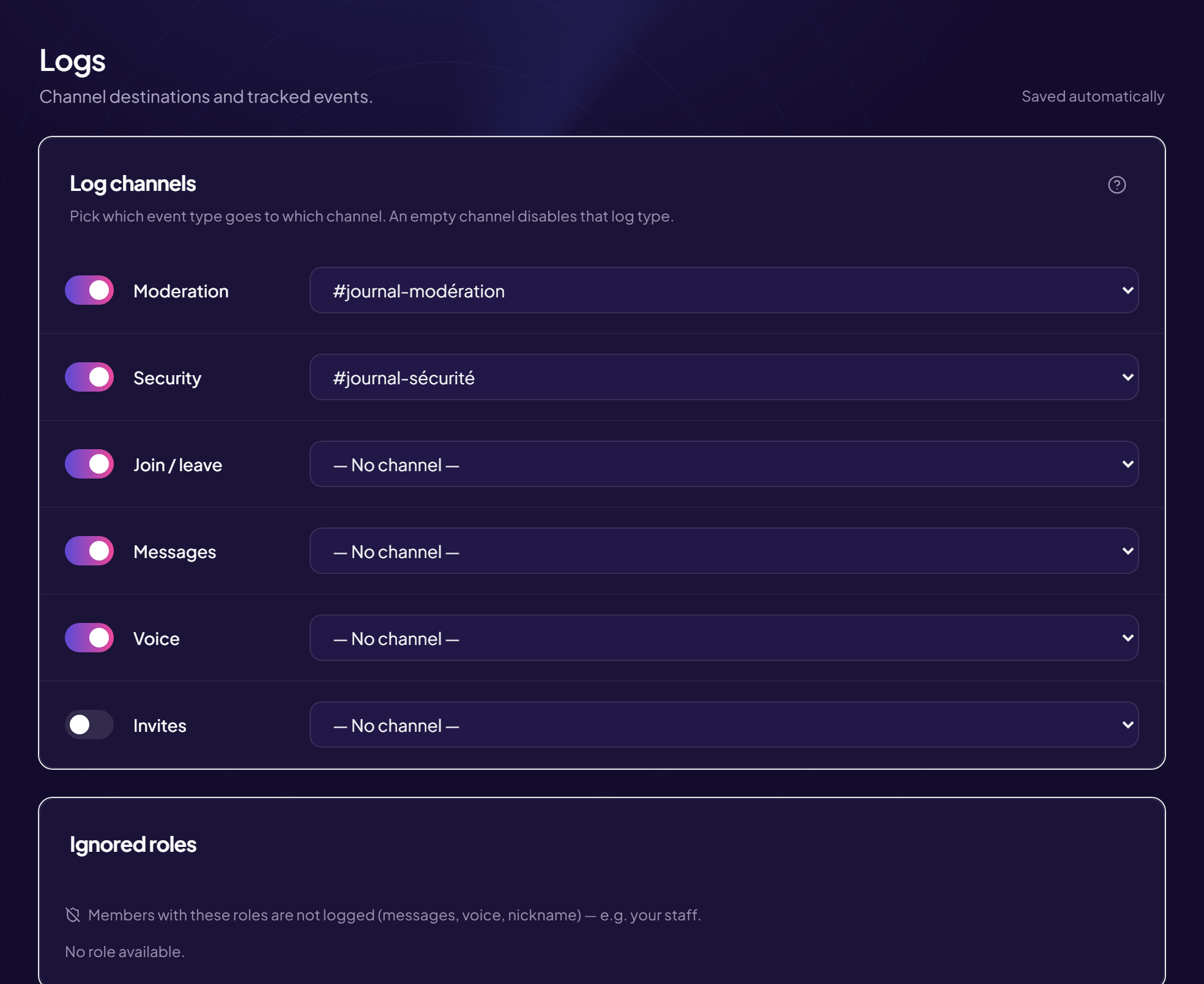
Logs are channels reserved for your team where the bot writes what happens. The Logs page decides which type of event goes in which channel. A type with no channel is not logged.
Go there
Moderation › Logs menu. Two cards: Log channels (where to write) and Logged events.
The six types of logs
| Type | What is noted | Suggested channel name |
|---|---|---|
| Moderation | Every sanction (ban, kick, mute, warning), who gave it and why. | #logs-modération |
| Security | Everything the protections block (dangerous links, files, raids…). | #logs-sécurité |
| Members | Joins and leaves, changes of nickname, name and profile picture. | #logs-membres |
| Messages | Deleted and edited messages, with the old text. Useful when someone erases an insult. | #logs-messages |
| Voice | Who joins, leaves or switches voice channel. | #logs-vocal |
| Invites | Invites created and deleted, and by whom. | #logs-invitations |
Set up a log
- Create the channel in Discord Keep it for your team. The bot must be able to write in it.
- Open the Logs page
- On the line for the type you want, open the list on the right and choose the channel Saved right away.
- Check the line’s switch Each type can also be turned off or back on without losing its channel.
One channel per type, or just one?
A single channel for everything is simpler for a small server; one channel per type is more readable as the team grows. The message log is the chattiest: it is better to isolate it.
Private and sensitive messages
A message log reveals what members write. Keep it for trusted moderators, and consider mentioning it in your rules.
Still stuck?
Contact support with the title of this article, the step where you are stuck and what you see on screen.
Contact support More articles: ModerationLast checked: 13 November 2026.