 OriusBotHelp center
How do I use the staff register (Staff page) and add someone to it?
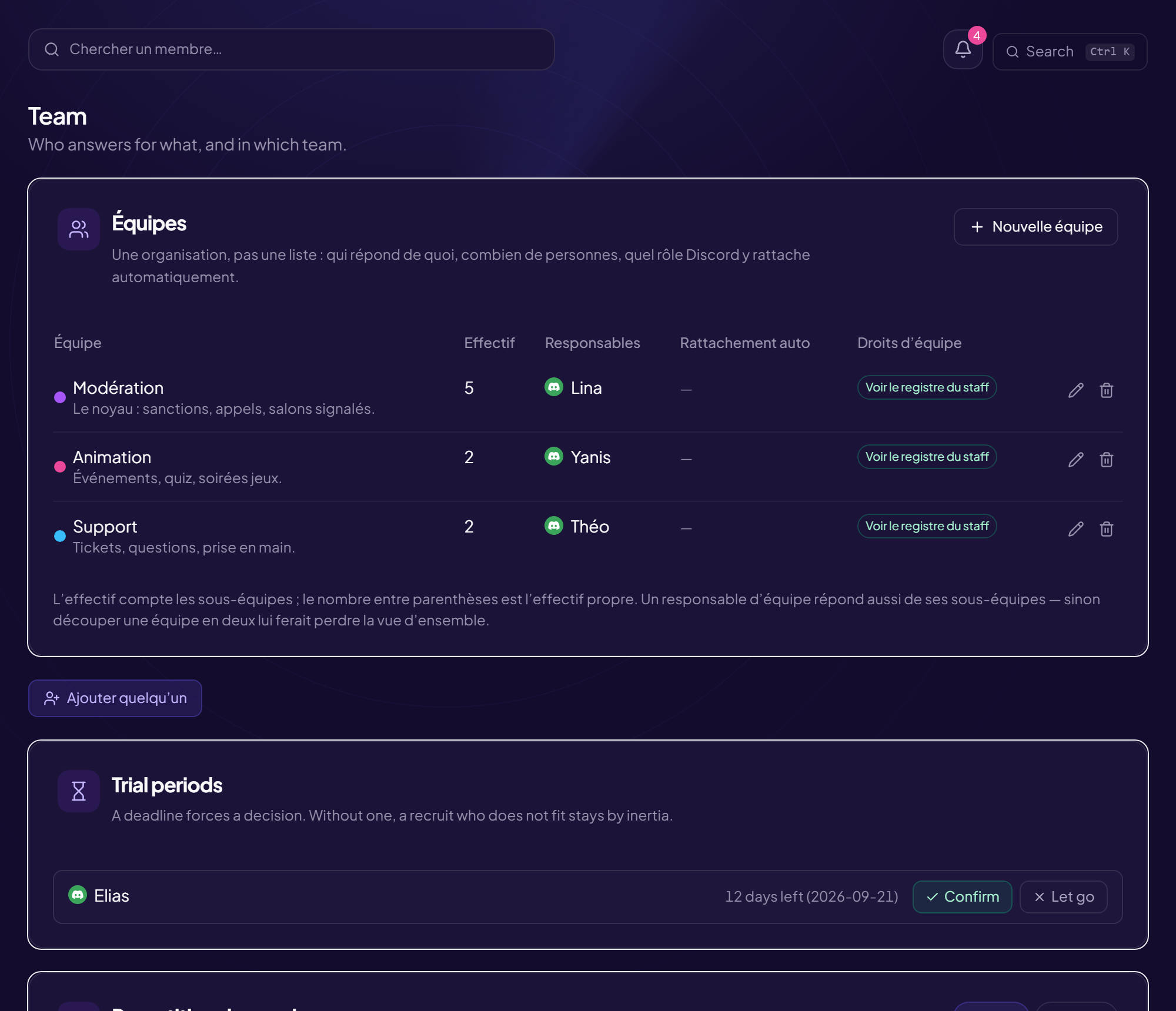
The Staff page is the staff register: who is staff, since when, in which team. Departures stay visible: that is the point of a register. It requires the “View the staff register” right.
Two ways to fill the register
| Way | How |
|---|---|
| Link a Discord role | Everyone who holds this role gets in automatically, and leaves when they lose it. This is the lasting way, to be done once in “Permissions” (see the article). |
| Add by hand | For someone who does not have the role yet, or to start right away. Reserved to people who can manage the staff. |
Add someone by hand
- Click “Add someone to the staff”
- In “Who?”, search for the person by username
- Choose the “Team”
- (Optional) Write the “Rank” For example Moderator, Host.
- Click “Add to staff”
Being in the register gives no rights
Rights come from the linked Discord role, or from the team. See the “Permissions” tab.
Read and use the page
- Display: Board (columns by team) or Register (list).
- Each line shows the Rank, the Team (“No team” if none), the arrival date (“since …”) and an Internal note, saved when you leave the field.
- Move someone to another team (Board view): drag their card from one column to another. Without the “Manage teams” right, the view is read-only.
- Former staff: deliberately kept. The day you wonder who did what, a deleted record gives no answer.
Still stuck?
Contact support with the title of this article, the step where you are stuck and what you see on screen.
Contact support More articles: Team and organisationLast checked: 13 November 2026.