 OriusBotHelp center
How do I link a Discord role to the CRM to give my team access?
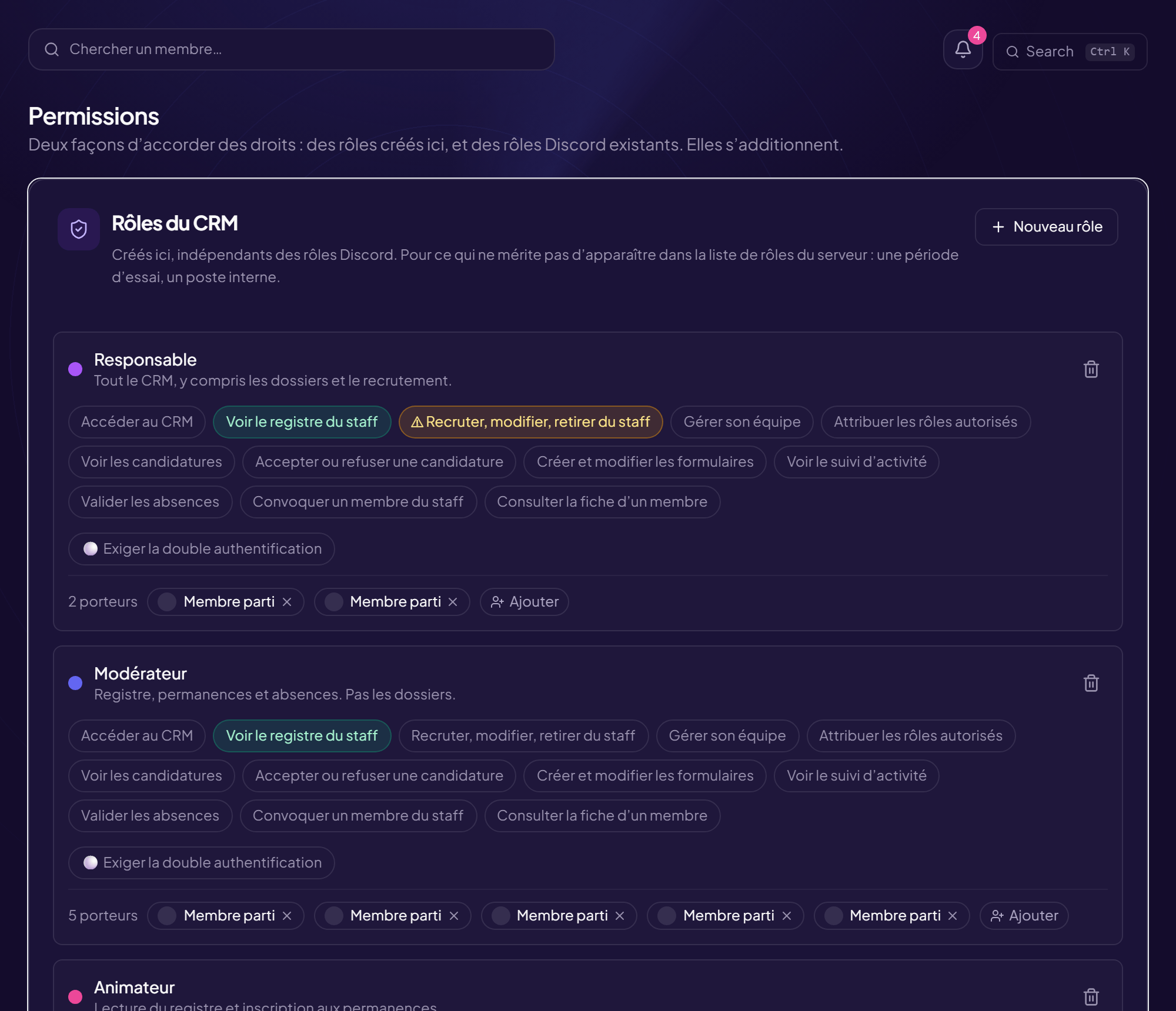
The lasting way to give your team access: everyone who holds a given Discord role automatically gets into the CRM, and leaves it when they lose the role. Do it once.
You must be a server administrator. Otherwise the page is read-only.
Link a role
- Open the Permissions page CRM Permissions menu, Discord roles linked to the CRM card.
- Click “Link a role”
- Choose the “Discord role to link to the CRM” “Choose a role…” list.
- Click “Link this role” It receives only the “Access the CRM” right. You tick the rest afterwards: granting rights nobody asked for is the best way to forget one.
- Tick the rights you want See the list of rights.
- Set the “Displayed rank” and “Attaches to team” The rank is the title shown in the register (Moderator, Host…). The attachment automatically places the role’s holders in the chosen team (or None).
While no role is linked
“No linked role”: only the server’s administrators get into the CRM.
Remove a role
- Click “Remove” on the role’s line
- Read “Remove this role from the CRM?” People who hold it immediately lose the access it gave them. Their record in the register is kept.
- Confirm with “Remove the role”
The role must already exist in Discord
Create it in Discord first (Server Settings › Roles) and give it to the team members, then link it here.
Still stuck?
Contact support with the title of this article, the step where you are stuck and what you see on screen.
Contact support More articles: Permissions and rolesLast checked: 13 November 2026.