 OriusBotHelp center
How do I create and organize teams (leads, sub-teams, goals)?
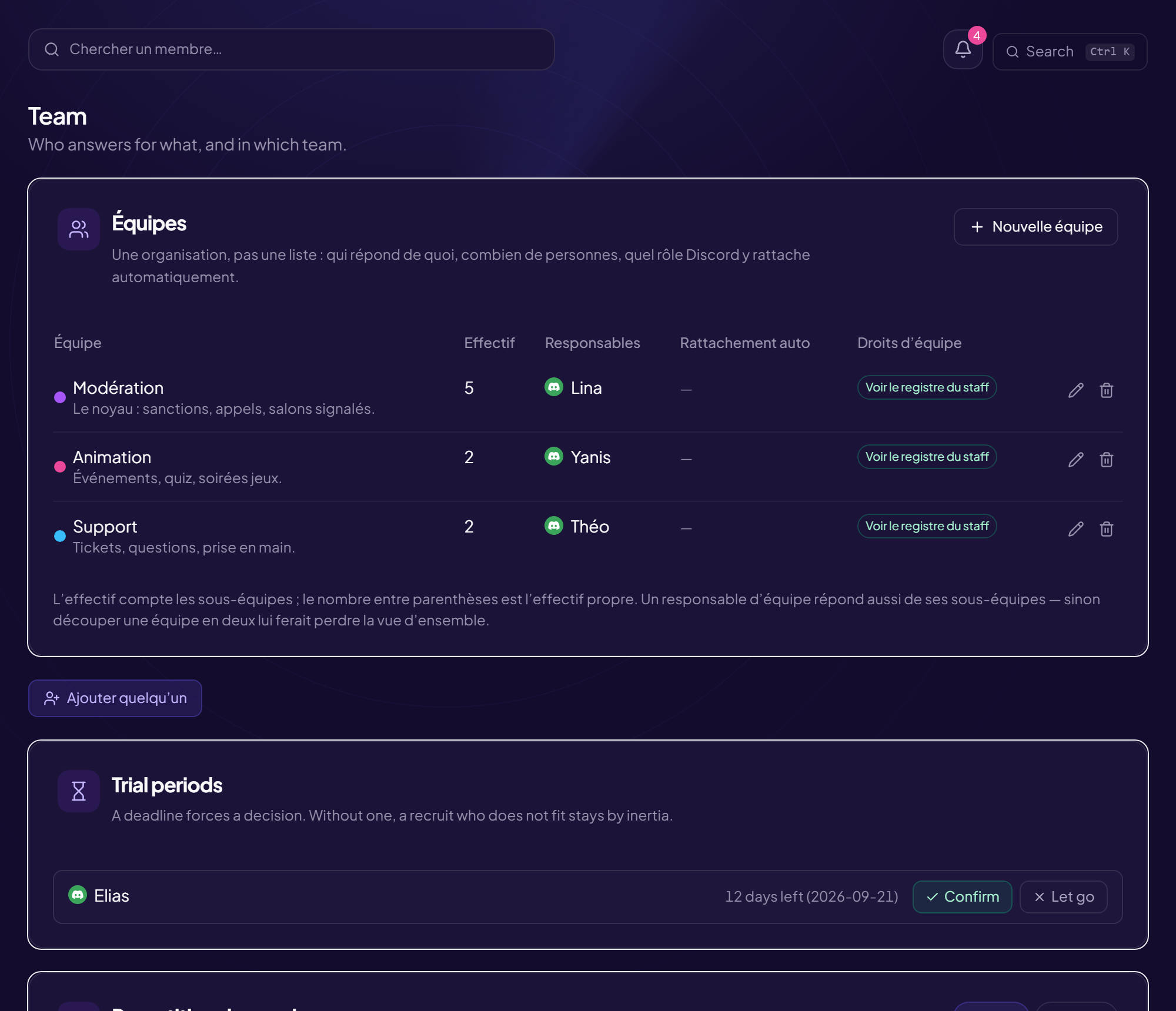
A team is an organization, not just a list: who answers for what, how many people, which Discord role automatically attaches people to it.
Start from a template organization
As long as the CRM is empty, the Start from a template organisation card offers four teams (Management · Moderation · Animation · Partnerships) and four CRM roles (Lead · Moderator · Host · Trial), created in one click with Create this organisation. Everything stays editable: it is a starting point. This template never overwrites an existing organization.
Create a team
- Open the Teams section Staff page, Teams card.
- Click “New team”
- Fill in the fields
| Field | Effect |
|---|---|
| Name (required) | For example Moderation. |
| Colour | To recognize the team. |
| What this team is for | One sentence. E.g. Handles members and reports. |
| Reports to | A parent team (sub-team) or None (root team). |
| Automatic attachment | A Discord role: holding it is enough to be part of the team. Without this link, every hire needs a manual registration that gets forgotten, and the board ends up lying. |
| Leads | Search for a lead then Add. A lead also answers for their sub-teams. |
| Rights granted to the whole team | Rights are inherited by sub-teams: what is granted here applies further down. |
| Activity expectations | Messages, Tickets taken, Days present, over N days. Leave empty what does not concern the team. |
- Click “Create the team”
The team list
Columns: Team, Headcount (counts sub-teams, the number in brackets is the team’s own headcount), Leads, Auto-attach, Team rights. Buttons: Edit, Delete.
Delete a team: its members simply leave it (they are not deleted), and its sub-teams move up a level.
Still stuck?
Contact support with the title of this article, the step where you are stuck and what you see on screen.
Contact support More articles: Team and organisationLast checked: 13 November 2026.