 OriusBotHelp center
How do I protect my members from stolen tokens and malicious code?
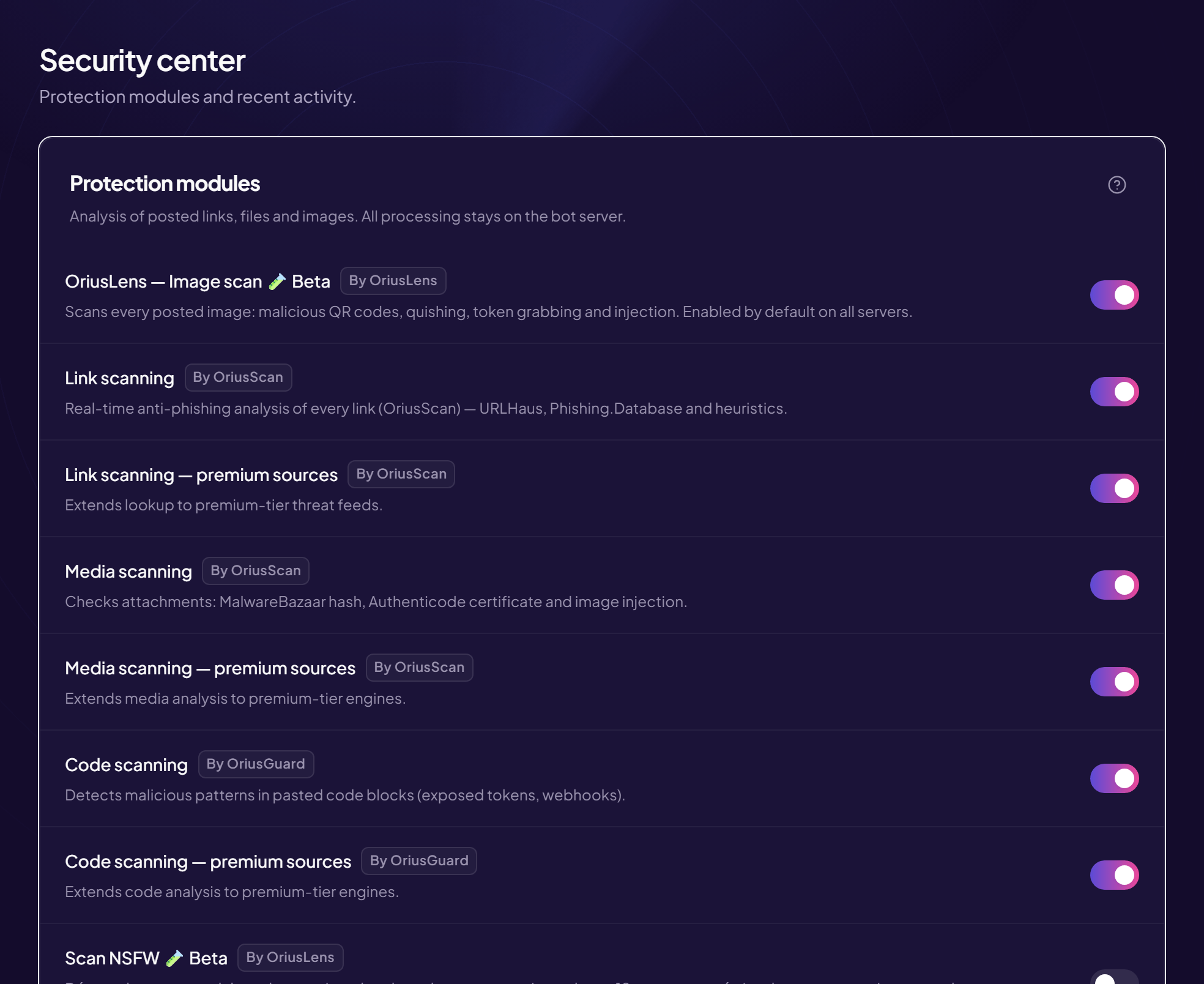
Code scanning looks at the code blocks your members post and spots what should never be public: bot tokens, webhook addresses, malicious code. It is provided by OriusBotGuard.
Turn it on
- Open the Security page Left menu, Protection section, then Security.
- Find the “Code scanning” line
- Turn the switch on
- (Optional) Turn on the “extended sources” line just below, which adds scanning engines. Greyed out = not included in your plan.
If you want to turn it off
A “Disable Code scanning?” window opens. It explains that your members would then be exposed to token theft (token grabbers) and to malicious code hidden in files and text. Click Cancel to keep the protection, or Disable anyway.
Set the threat threshold
The threat threshold is a danger score from 10 to 100. From that score on, a file or code is blocked.
- Lower = stricter, but more wrong blocks (false positives).
- Higher = fewer wrong blocks, but more dubious code gets through.
- Default value: 50.
- Look for the “Module status” card The setting is at the very bottom, named Threat threshold (OriusBotGuard).
- Type a number between 10 and 100 The field is on the right. It saves by itself.
Frequently asked questions
A member posted a code example and it was blocked
The threshold may be too low. Raise it in steps of 10 and test again.
A bot token was published by mistake
Even if the message is deleted, consider the token compromised: regenerate it immediately in Discord’s developer portal.
Still stuck?
Contact support with the title of this article, the step where you are stuck and what you see on screen.
Contact support More articles: ProtectionLast checked: 13 November 2026.