 OriusBotHelp center
How do I scan posted files (viruses, programs, archives)?
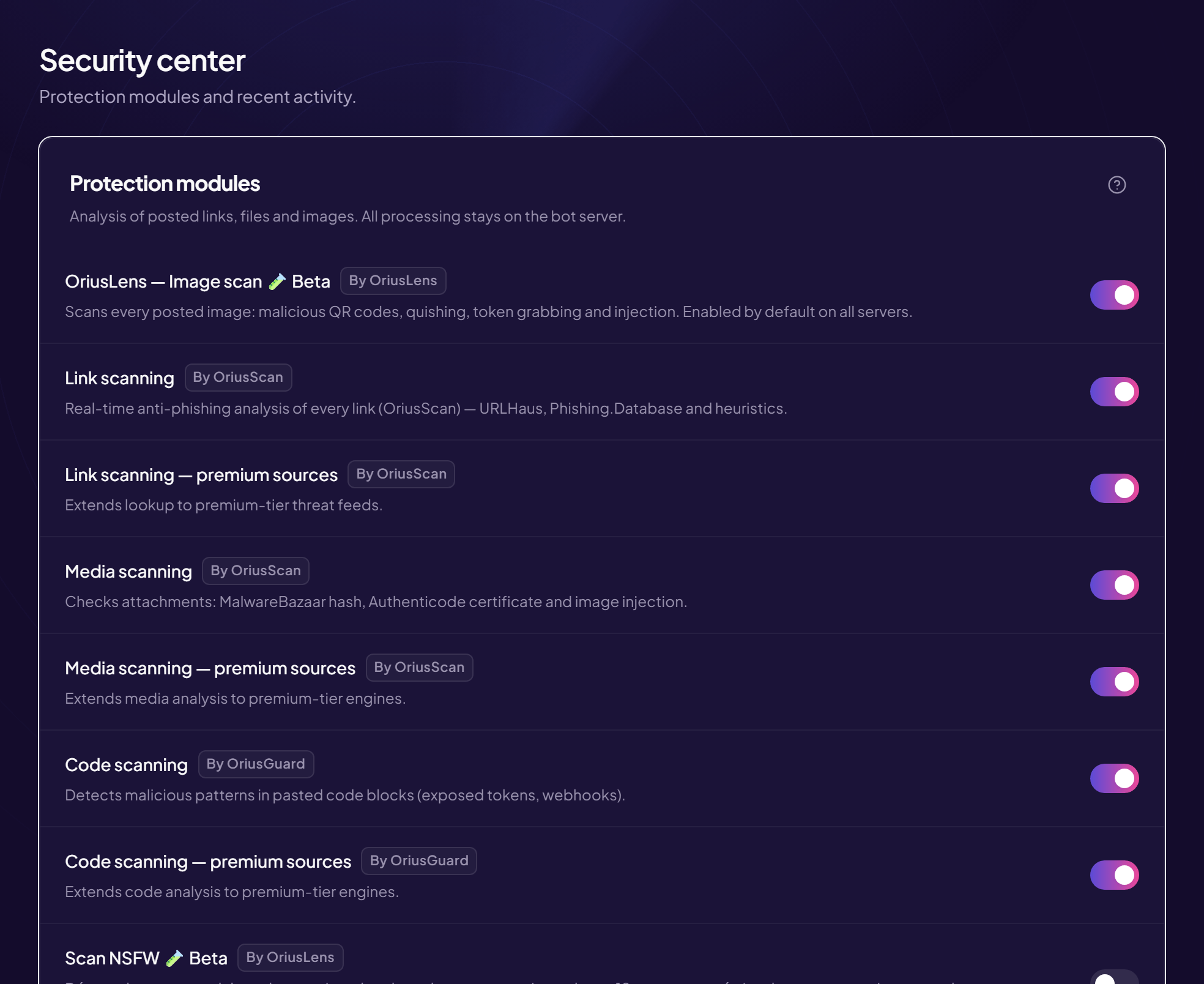
Attached files (programs, archives…) are compared with known viruses and checked before staying in the channel. This analysis is done by OriusBotGuard. Two switches on the Security page handle it.
1. Scan files
- Open the Security page Left menu, Protection section, then Security.
- Turn on “Media scanning” Its description: checks attached files (known virus signatures, program certificates, hidden code in images).
- (Optional) Turn on the “extended sources” line just below It adds scanning engines. Depending on your server it is called Media scanning — extended sources or … premium sources. Greyed out = not included in your plan.
2. Hold files while they are scanned
This option is independent of the first: it changes what members see.
- Find the “Hold files while they are scanned” line
- Turn the switch on
- Give the bot the required permissions The bot needs the Discord permissions Manage Messages and Manage Webhooks for this option to work.
What happens when a member posts a file
With “Hold files” on:
- The file leaves the channel In its place appears an “analysis in progress” message, under the member’s name and picture. Nobody can download the file in the meantime.
- Clean file The message comes back as it was, with the note “scanned by OriusBot”.
- Dangerous file It does not come back.
Images and GIFs are not held (they fall under image scanning).
What happens to the member?
For a dangerous file, the sanction applied to the member is set on the Dangerous file line of the AutoMod page. See The sanction triggers.
If it does not work
- The “analysis in progress” message never appears — check that the bot has the Manage Messages and Manage Webhooks permissions in the channel.
- A clean file did not come back — contact support with the time, the channel and the file name.
Still stuck?
Contact support with the title of this article, the step where you are stuck and what you see on screen.
Contact support More articles: ProtectionLast checked: 13 November 2026.