Guide · August 19, 2026 · 5 min read
Discord staff CRM: recruiting and running your team
Past thirty or so active members, a moderation team can no longer be run from a private channel. You end up with a spreadsheet for the register, a Google form for applications, and three threads for time off. This guide shows how to keep it all in one place — step by step, with screenshots.
Contents
What you will have at the end
- A staff register that fills itself from your Discord roles
- Recruitment with a public form, positions and an automatic announcement
- Activity tracking, a rota, and trial periods that do not get forgotten
Allow ten minutes for the essentials. The rest fills in as you go.
Before you start
The CRM lives in the web panel, at /staff. It is a space separate from the
admin panel, and that is deliberate: your moderators get in without receiving a single
administration permission on the server. The Staff CRM button sits in the admin panel.
On first opening, everything is empty. That is normal: nobody is in the register yet.
1. Link a Discord role
This is the move that opens access to your team, and it is done once. In the Rights tab, pick a role — “Moderator”, for instance — and tick what it grants. One role can carry several rights.
Three things worth knowing straight away:
- Without the “Access the CRM” right, nothing opens. Access is decided, not inferred from another permission.
- Someone who loses their Discord role loses their rights on the next request. There is nothing to remember to remove.
- You can also add somebody by hand, in the Team tab, by searching for their username.
2. Organising the teams
The teams board answers a question the register never answers: how is this distributed? A short column is visible before you have read a single name. You move somebody by dragging their card from one column to another.
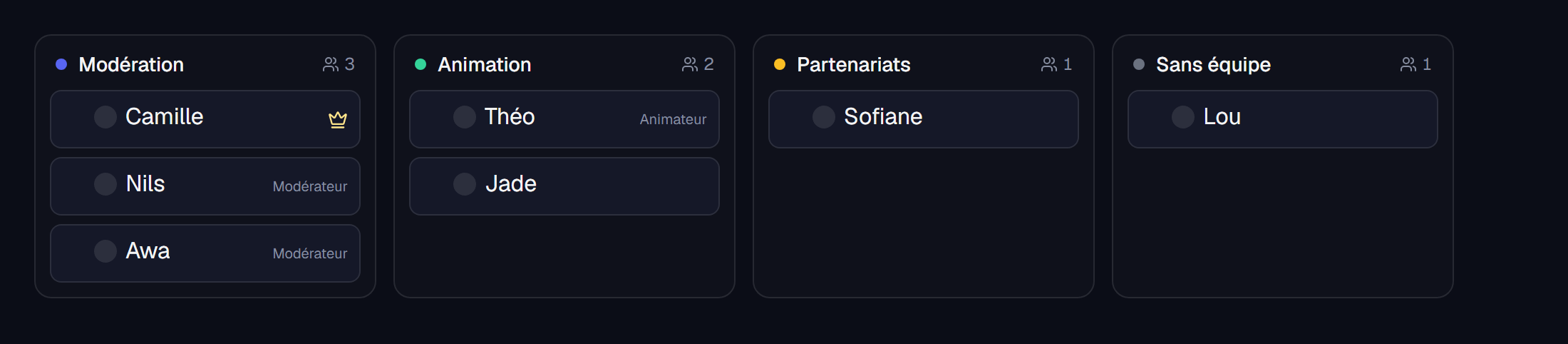
A team lead sees and manages only their own. That is what lets you delegate without opening the whole org chart.
3. Building the application form
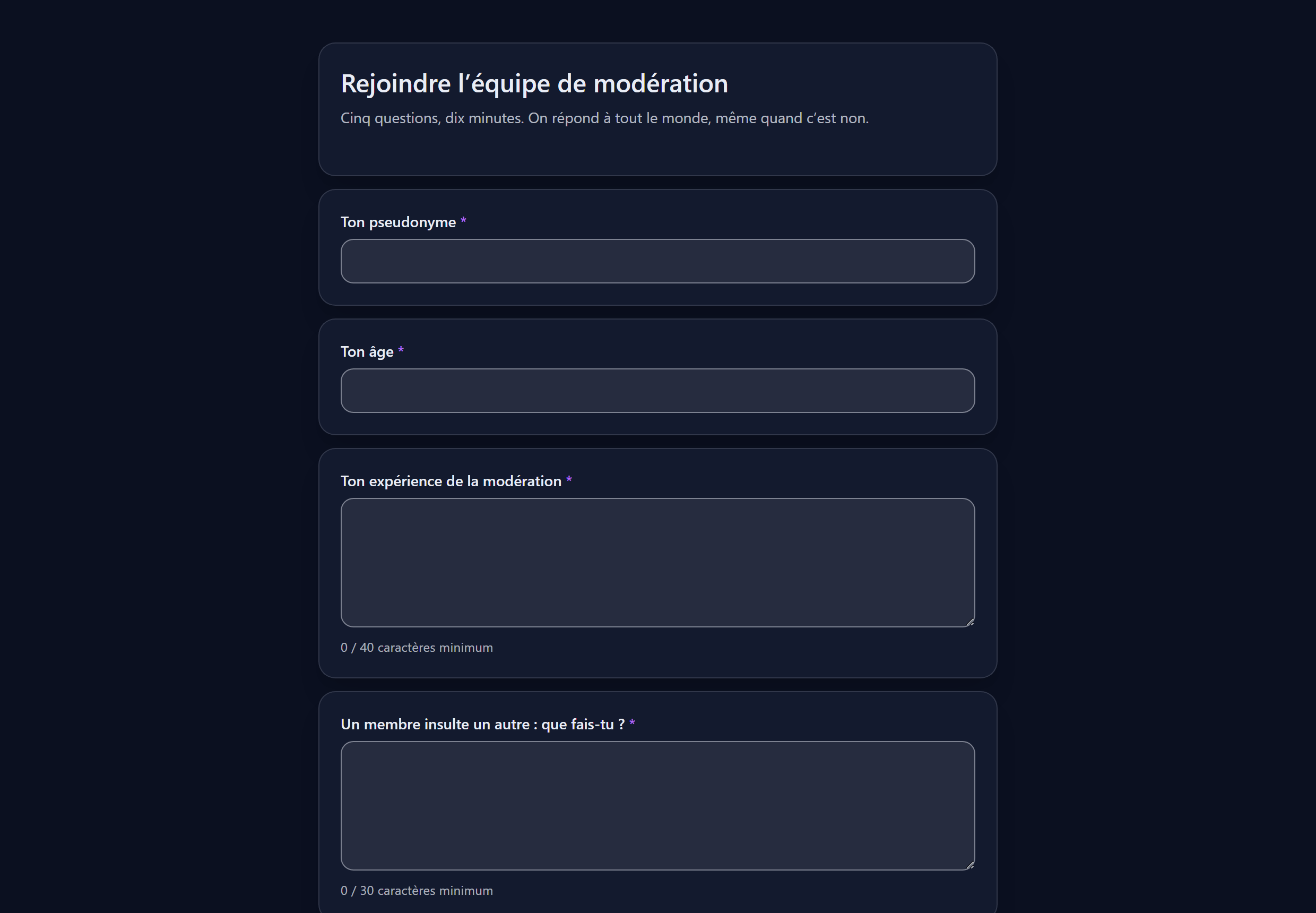
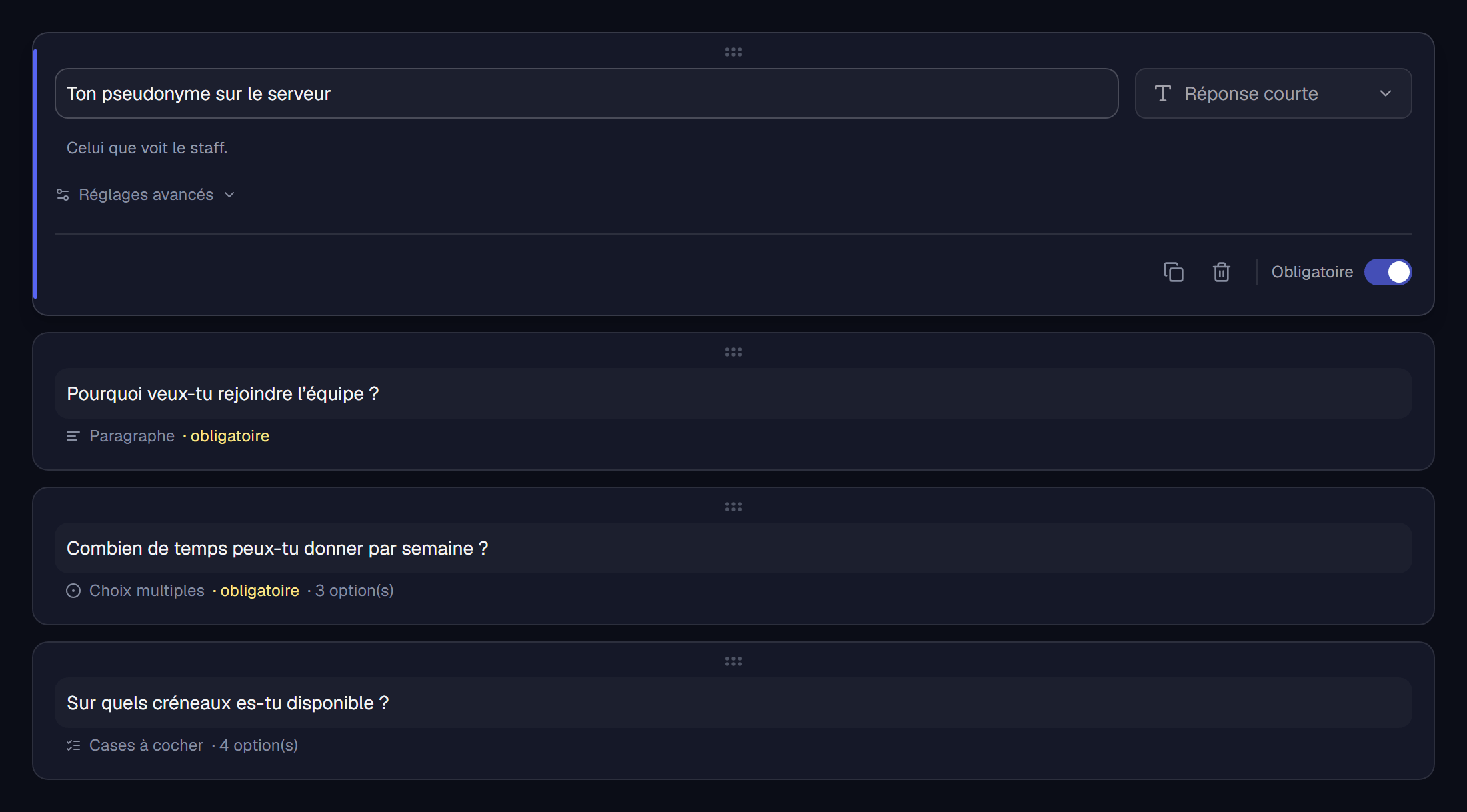
The Recruitment tab. The editor deliberately borrows the conventions of Google Forms: one card per question, the type is chosen on the right. If you have built one elsewhere, there is nothing to relearn.
4. Declaring the positions to fill
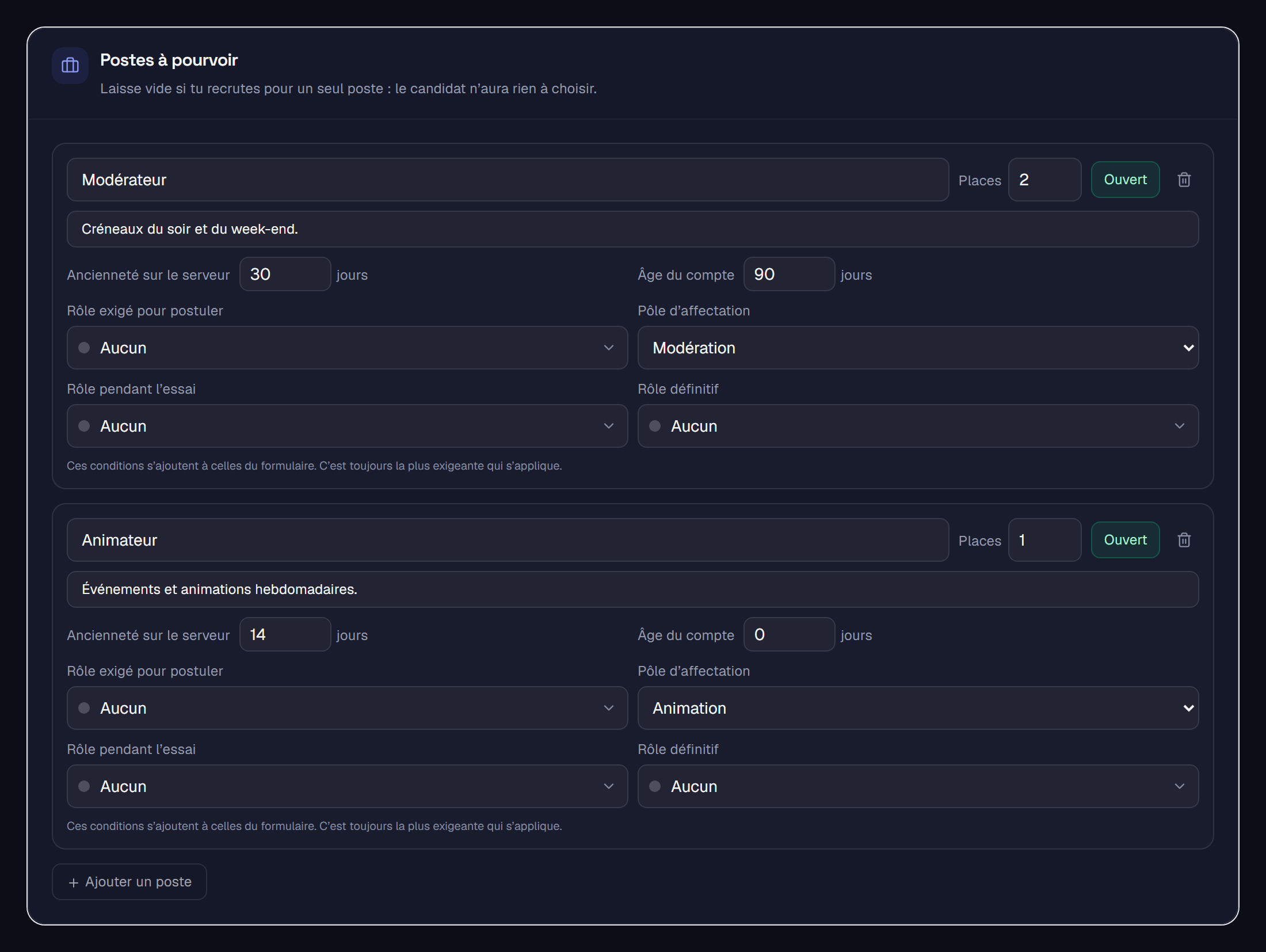
A recruitment drive rarely opens a single position. Rather than two forms — and so two links and two queues to follow — declare several positions in the same one: the candidate picks theirs.
A rule that avoids a trap
A position can only tighten the form's prerequisite, never loosen it. Otherwise, creating a position with no condition would bypass the server's rule — and that is exactly what you do without thinking about it.
5. Publishing and spreading the word
Choose the announcement channel and the shape of the message, then switch the form to open: the announcement goes out on its own. Editing it afterwards updates the same message — it does not publish a second one, and candidates never follow a stale link.

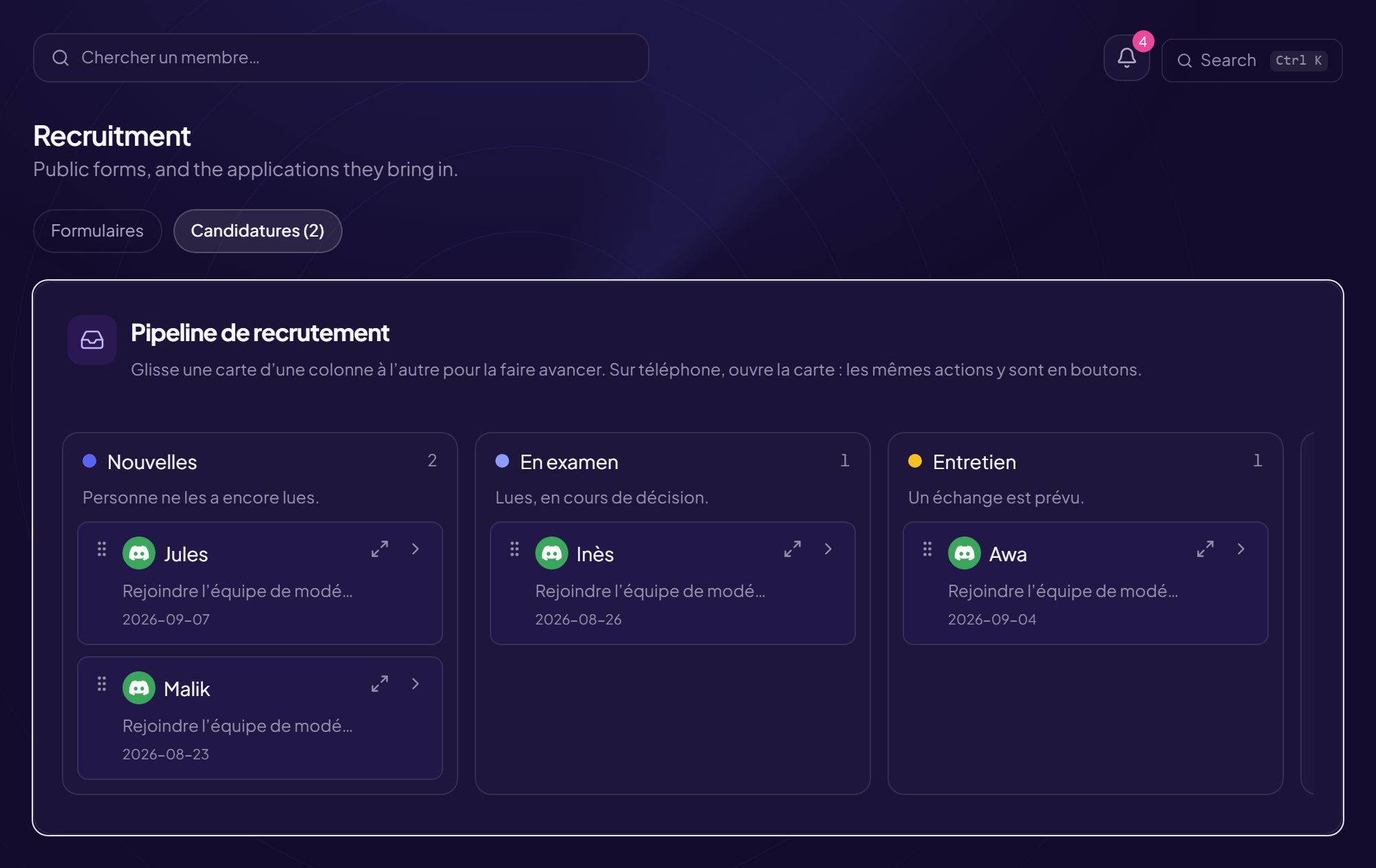
6. Reading the applications
Applications land in a board where you move the cards forward. The expand icon opens the application in full: the answers on one side, and on the other what the bot has already observed about the person — activity, warnings, penalties, account age, previous applications.
The most useful signal is also the least obvious: messages deleted for scam content. It is almost never a fraudster — it is a compromised account the person has not noticed. Recruiting them would amount to giving moderation rights to whoever controls their account.
The CRM never returns a verdict. It shows, you decide.
7. Offering an interview
“We'd like to talk, when are you free?” opens three days of back-and-forth where each side waits for the other. Offer several slots instead: the candidate takes theirs in one click from their tracking link, and you get a private message as soon as they have chosen.
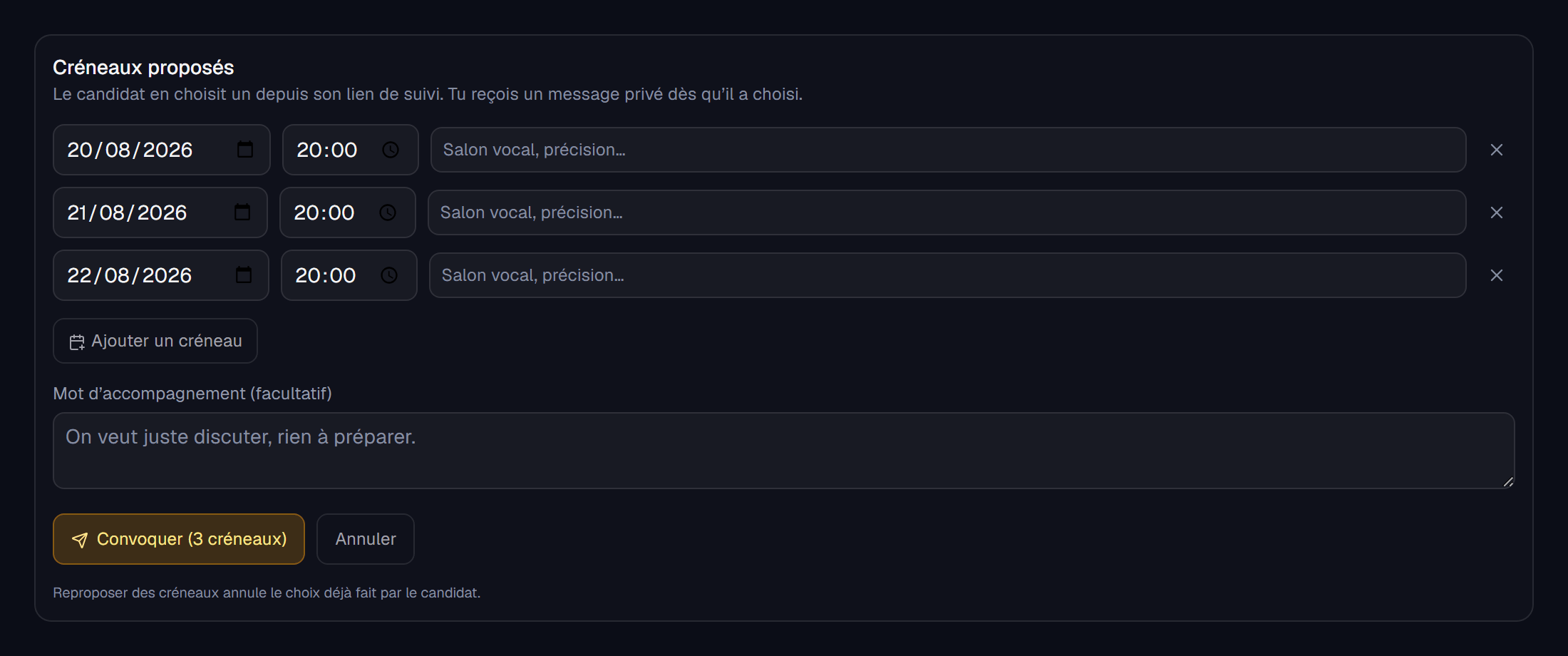
The candidate follows their application on a private link received by direct message: received, under review, interview offered, accepted or not selected. They never have to chase the staff — and it is often the best candidate who walks away when nobody answers.
8. The trial period
Set its length in Settings (0 = none). On acceptance, the position's trial role is granted automatically and the deadline set. A reminder arrives as the end approaches.
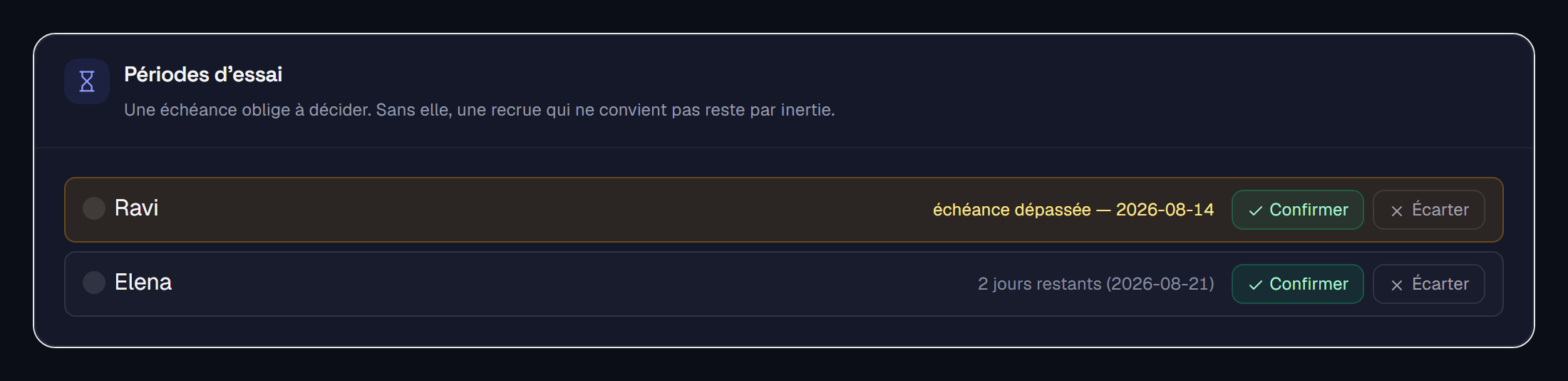
Nothing decides itself. No automatic confirmation — a trial passed by silence is worth nothing — and no automatic dismissal. You confirm, and the bot then grants the permanent role while removing the trial one.
And then, day to day
Once the team is in place, three screens get used almost every day.
- Activity — who is around, who is drifting off, with expectations specific to each team: an events host and a moderator do not do the same job.
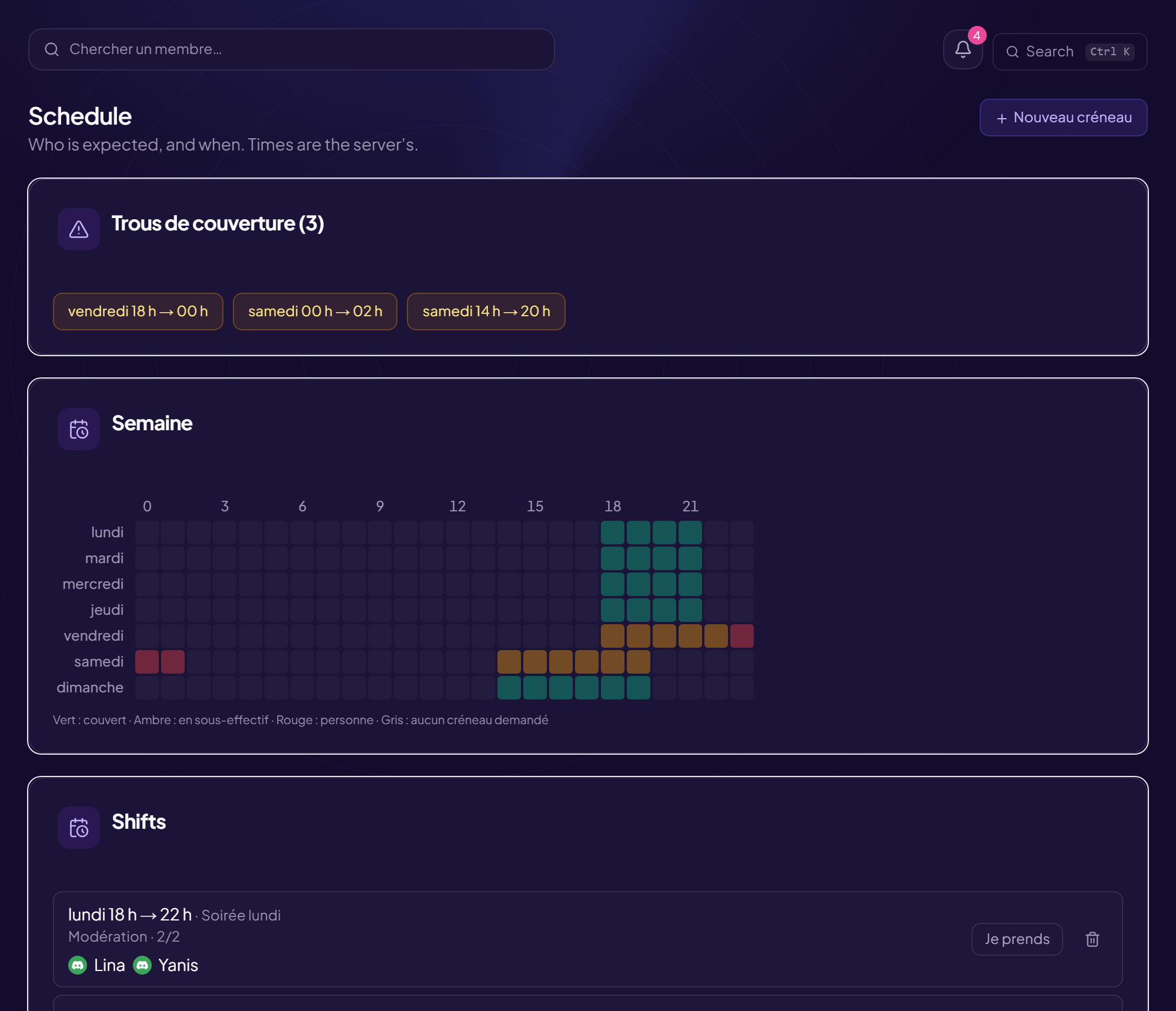
- Rota — the slots covered, and the gaps before they happen. “Sunday 3–7 a.m., nobody” has to be visible on Wednesday.
- Absences — declare, approve. A declared absence switches off the “gone quiet” alert: that is the one concrete reward for having declared it.
On top of that come an internal handbook — your written procedures, with read receipts — and an HR file. Start with the penalty scale: it is the one people reinvent most often, and two moderators who were never given the same instruction cannot reach the same decision.
What to take away
- Link a Discord role: that is the move that opens the CRM to your team, and it is done once.
- A single recruitment drive can carry several positions, each with its prerequisites and its roles.
- The candidate is never left without news: tracking link, interview slots, a reasoned answer.
- Nothing about a person is decided automatically. The CRM prepares the decision, it does not take it.
Read next : Security checklist, Auto-moderation.