 OriusBotHelp center
How do I turn on two-factor authentication (2FA) in the CRM?
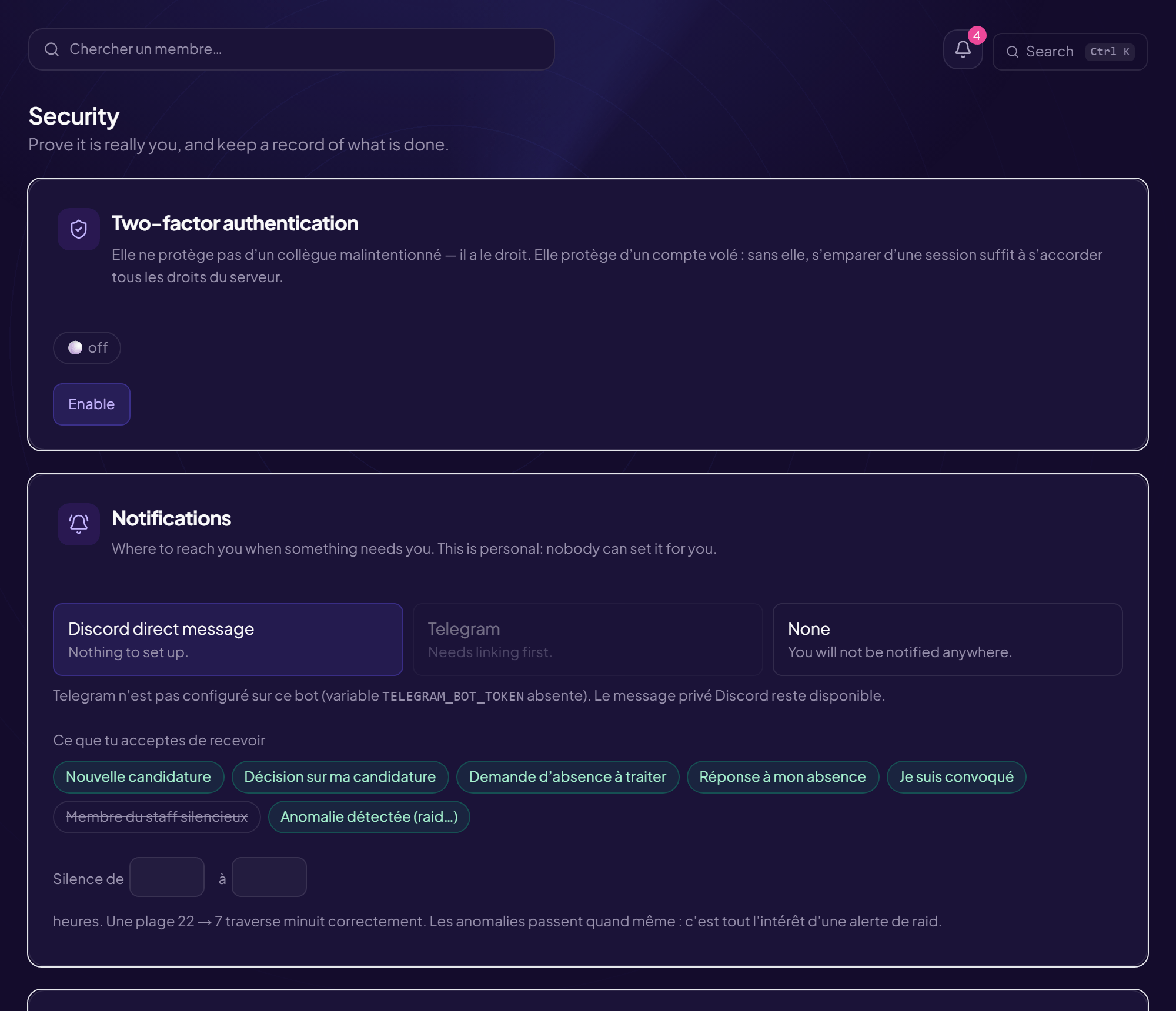
Two-factor authentication protects your account from session theft. It does not protect against a malicious colleague (they have a right to be there): without it, taking over a session would be enough to grant yourself every right on the server.
Turn it on
- Open the Security page Security menu of the CRM, Two-factor authentication card (status inactive).
- Click “Enable”
- Scan the code with your app Google Authenticator, Aegis, 1Password or equivalent. Cannot scan? “Enter this key by hand”.
- Type the “Six-digit code” shown by the app This code checks that the app has really saved the key. Without this step, you would be turning on protection on a secret you may never have scanned, and you would be locked out.
- Write down your backup codes See below. Then click “I have written them down somewhere other than this browser” and Finish.
Backup codes
The page shows how many codes you have left. When you use one: “Backup code used — N left”.
Confirm your identity
For a sensitive action, the CRM asks “Confirm your identity”: type the six-digit code (or a backup code). The confirmed identity is valid for fifteen minutes, then you have to start again. Button: Confirm my identity.
Remove 2FA
Button Remove 2FA then Remove, after entering a valid code: you cannot remove a protection without proving you are the one who set it up. If the server requires it, you will no longer be able to change permissions or settings without it.
Still stuck?
Contact support with the title of this article, the step where you are stuck and what you see on screen.
Contact support More articles: Account securityLast checked: 13 November 2026.