 OriusBotHelp center
How do I get the OriusBot bot to join my Twitch channel?
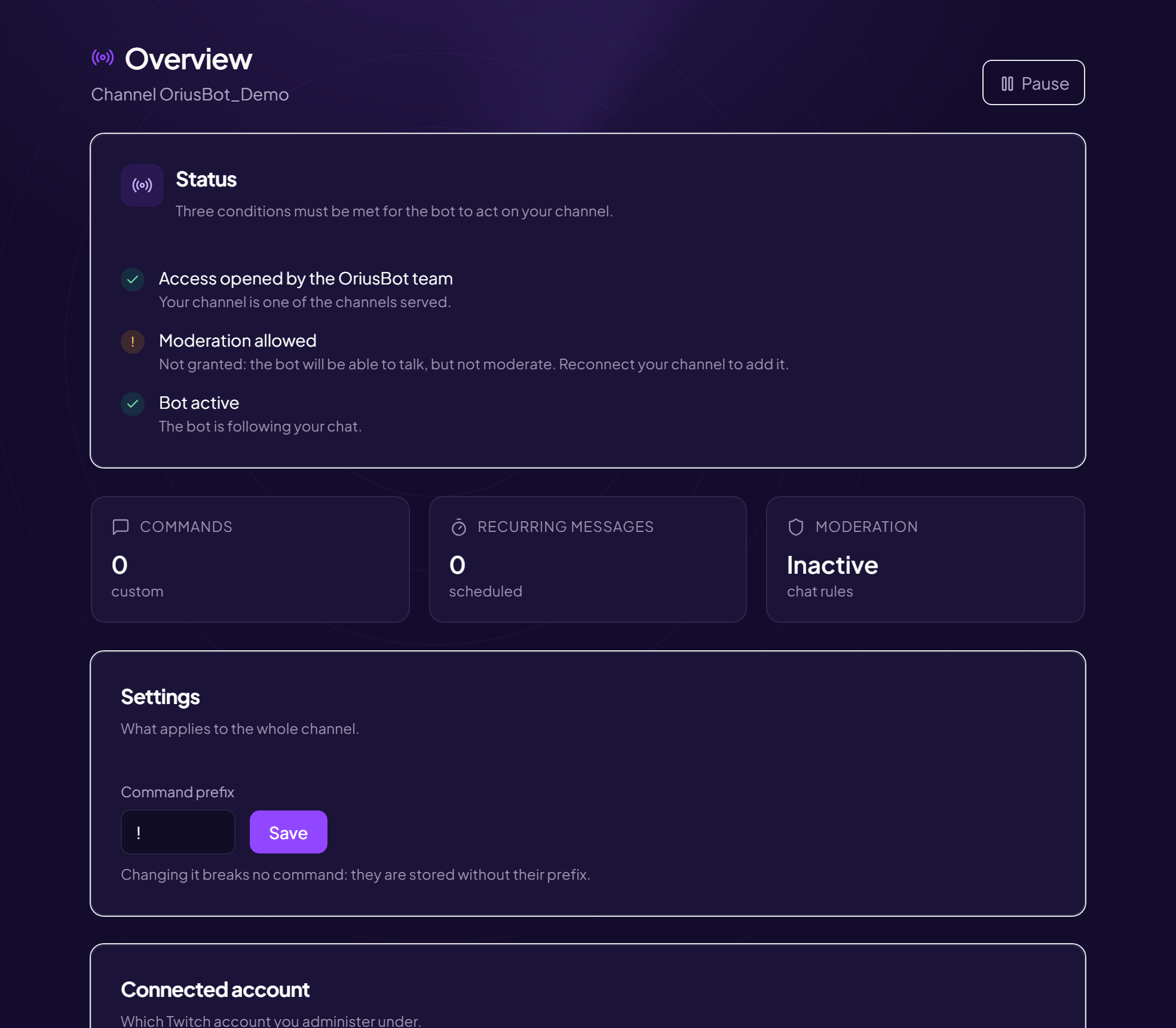
OriusBot also has a chat bot for Twitch: custom commands, recurring messages and automatic moderation of your chat. It is managed in a dedicated area of the panel, separate from the Discord servers area.
Beta
The Twitch bot is in open beta and still under development: bugs may happen. If you run into one, report it to support. Access may be temporarily limited: the panel tells you if your account does not have access yet.
Connect my channel
- Open the sign-in page
oriusbot.com/login. - Choose “A Twitch channel” The page asks “What do you want to manage?”. Choose the A Twitch channel option.
- Click “Continue with Twitch” Sign-in goes through your Discord account first, then you link your channel.
- Authorize on Twitch Success message: “Channel authorized. The bot joins your chat within the minute.”
If you refuse the authorization on Twitch, nothing is saved (“Authorization refused on Twitch”). An expired authorization link shows “Authorization link expired. Start over from the beginning”.
The three conditions for the bot to act
On the Overview of the Twitch area, the Status card lists three conditions:
| Condition | If it is not met |
|---|---|
| Access opened by the OriusBot team | “Pending”: during the beta, access is opened manually. |
| Moderation allowed | The bot will be able to talk but not moderate. Reconnect your channel to give it this right (or make it a moderator on Twitch). |
| Bot active | You have paused it. |
Pause, reactivate, change the prefix
- Pause: the bot stops acting, your configuration is kept. Reactivate turns it back on.
- Command prefix (Settings card): the character that comes before a command (
!by default). Changing it does not break any command, because they are saved without their prefix. - The Connected account card shows your Twitch ID; Manage permissions on Twitch opens Twitch’s settings.
The Twitch area menu contains: Overview, Commands, Recurring messages, Moderation, Discord link and Coach.
Still stuck?
Contact support with the title of this article, the step where you are stuck and what you see on screen.
Contact support More articles: NotificationsLast checked: 13 November 2026.