 OriusBotHelp center
How do I create a custom command for my Twitch chat?
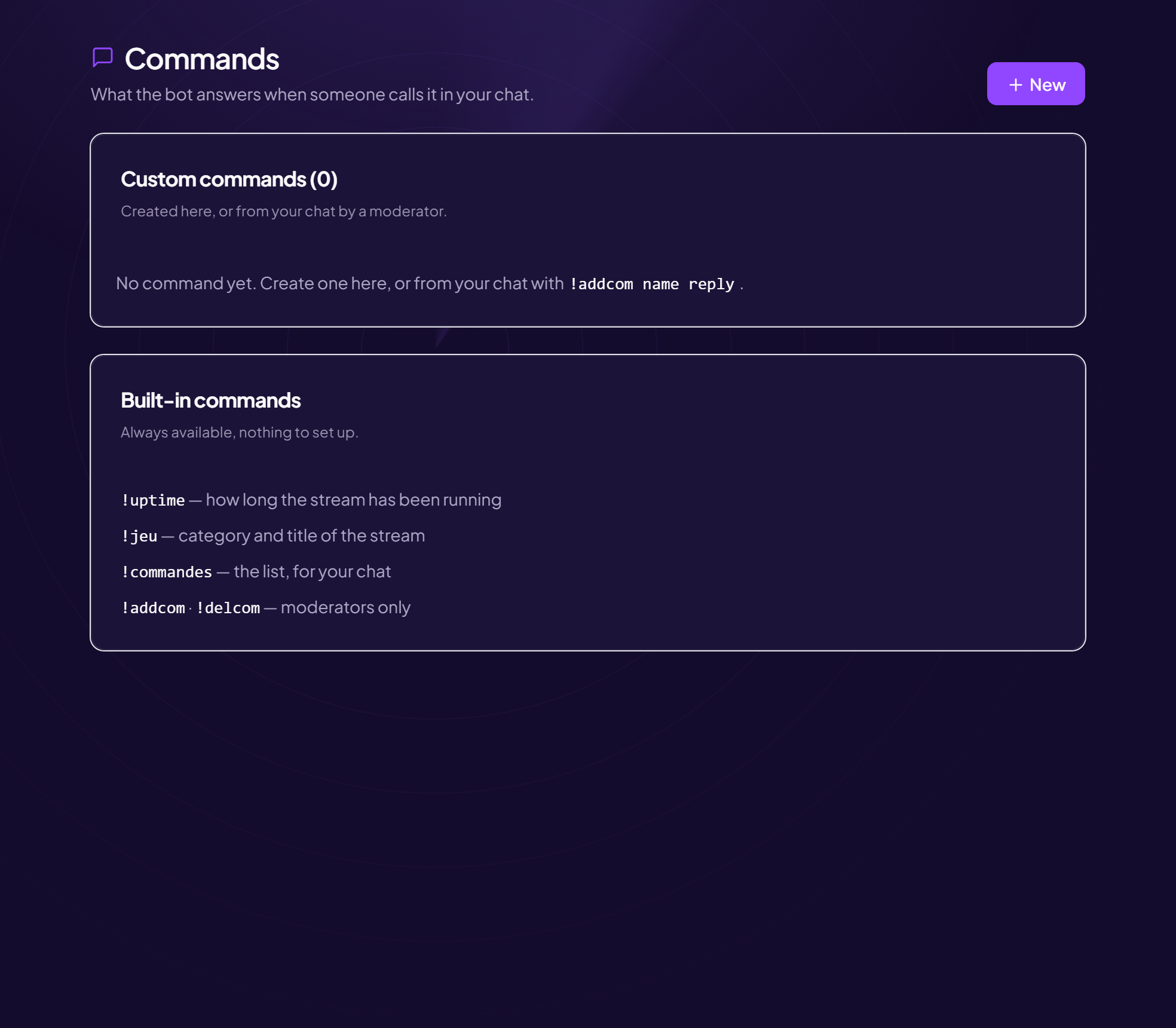
A command is a word your viewers type in the chat (for example !discord) and that the bot replies to.
Create a command
- Open the page Twitch area of the panel, Commands menu (“What the bot replies when called in your chat”).
- Click “New”
- Fill in the “New command” form
| Field | Effect |
|---|---|
| Name | The word to type, without the prefix. E.g. discord for !discord. |
| Who can use it | Five levels, each one opens it to everyone above (see below). |
| Cooldown (s) | Minimum delay, in seconds, between two uses. |
| Reply | The text sent in the chat. Variables are offered under the field. |
- Click “Save” Message: “Command saved. It is active within the minute.”
Who can use it
| Level | Who can run it |
|---|---|
| Everyone in the chat | Anyone in the chat. |
| Subscribers and above | Subscribers, VIPs, your staff and you. |
| VIPs and above | VIPs, your staff and you. |
| Your staff (moderators and you) | Your moderators and you. No one else. |
| Only you | Only you. Even your moderators will not have it. |
From the chat
A moderator can also create a command directly in the chat, using the format name reply (the page shows the exact example with your prefix). The commands created appear in the “Custom commands” list.
Edit, delete, understand the list
- Each line shows the number of calls. Edit and Delete are on the right (a confirmation is requested).
- A “disabled” command is marked as such.
- If a command does not trigger, the page says why: its name is already that of a built-in command. Turn off the built-in one in “Built-in commands”, or rename yours.
The built-in commands
Always available, nothing to configure: the stream duration (uptime), the stream’s category and title, the list of commands, and adding commands, which is reserved for moderators.
Still stuck?
Contact support with the title of this article, the step where you are stuck and what you see on screen.
Contact support More articles: NotificationsLast checked: 13 November 2026.