 OriusBotHelp center
How do I automatically moderate my Twitch chat (links, caps, repeats, toxicity)?
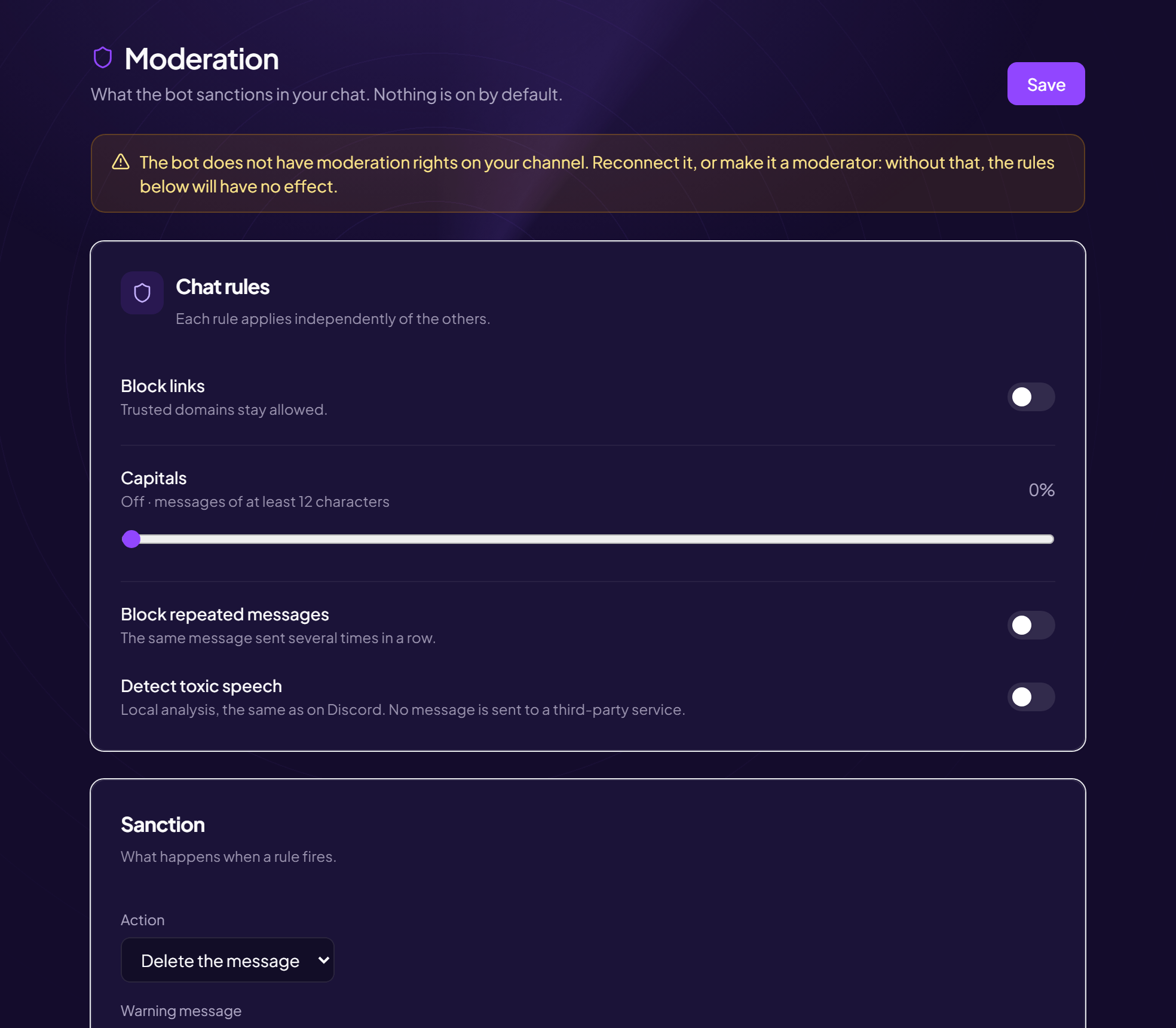
The Moderation page of the Twitch area sets what the bot sanctions in your chat. Nothing is active by default.
The bot must have moderation rights
If it does not, a message points it out and the rules will have no effect. Reconnect your channel, or make it a moderator on Twitch. See Getting the bot to join my channel.
The chat rules
Each rule applies independently of the others.
| Rule | Effect |
|---|---|
| Block links | Deletes messages containing a link. The allowed domains (separated by commas, subdomains included) stay permitted. |
| Capital letters | Acts above a percentage of capital letters (adjustable threshold), on messages of a certain minimum length. |
| Block repeated messages | The same message sent several times in a row. |
| Detect toxic language | Local analysis, the same as on Discord. No message is sent to a third-party service. |
The sanction
- Choose the “Action” Delete the message or Timeout.
- If you time out, set the “Duration (seconds)” 14 days at most.
- Write a “Warning message” Sanctioning without saying anything lets the person do it again without understanding: the page offers variables (such as the username) to insert in the text.
The exemptions
- My moderators: never sanctioned by the bot.
- My subscribers: handle with care, a subscribed account can also go off the rails.
- You, the channel owner, are never moderated.
Click Save: “Moderation saved. The new rules apply within the minute.”
Still stuck?
Contact support with the title of this article, the step where you are stuck and what you see on screen.
Contact support More articles: NotificationsLast checked: 13 November 2026.