 OriusBotHelp center
How do I announce a Twitch live stream on my Discord server?
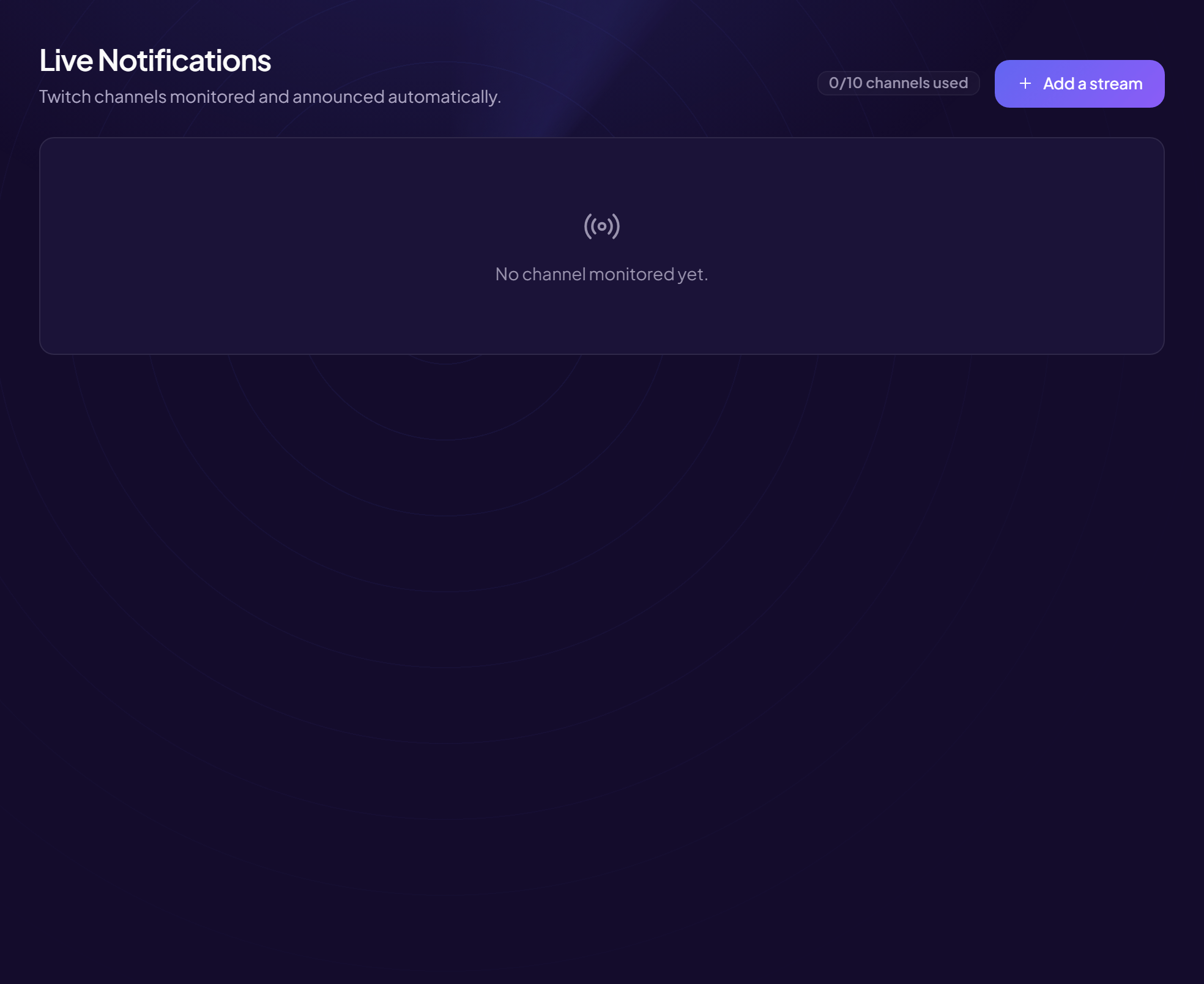
The bot watches Twitch channels and notifies your server as soon as a channel goes live.
Add a channel
- Open the page Notifications menu (section of the same name), Twitch tab (title: Live Notifications).
- Click “Add a stream”
- Type the “Twitch channel name”
As it appears in its address. E.g.
ninjafortwitch.tv/ninja. The panel checks the channel and shows “Channel found:”, or offers “Did you mean:” if it cannot be found. - Choose the “Announcement channel”
Where the bot notifies when the live stream starts. E.g.
#lives. - (Optional) Write the “Custom message”
{channel}= the channel’s name,{url}= the live stream’s link. Empty = default message.
Example:🔴 {channel} est en live ! Viens dire bonjour : {url} - (Optional) Choose the “Role to mention”
Members of this role receive a notification. Empty = nobody is mentioned. E.g.
@Notif-lives. - Click “Save”
Follow and remove
The list shows each channel’s status (Live or Offline) and the quota used (“channels used”). Remove stops watching. With no channel: “No channel monitored yet.”
The limit
When the quota is reached, the button is replaced by “Limit reached — upgrade to Pro to monitor up to 10 channels”.
A role rather than @everyone
Create a “Notif-lives” role that everyone takes in a role picker. Mentioning the whole server on every live stream ends up making people mute notifications.
Still stuck?
Contact support with the title of this article, the step where you are stuck and what you see on screen.
Contact support More articles: NotificationsLast checked: 13 November 2026.