 OriusBotHelp center
How do I automatically give a role to new members (auto-role)?
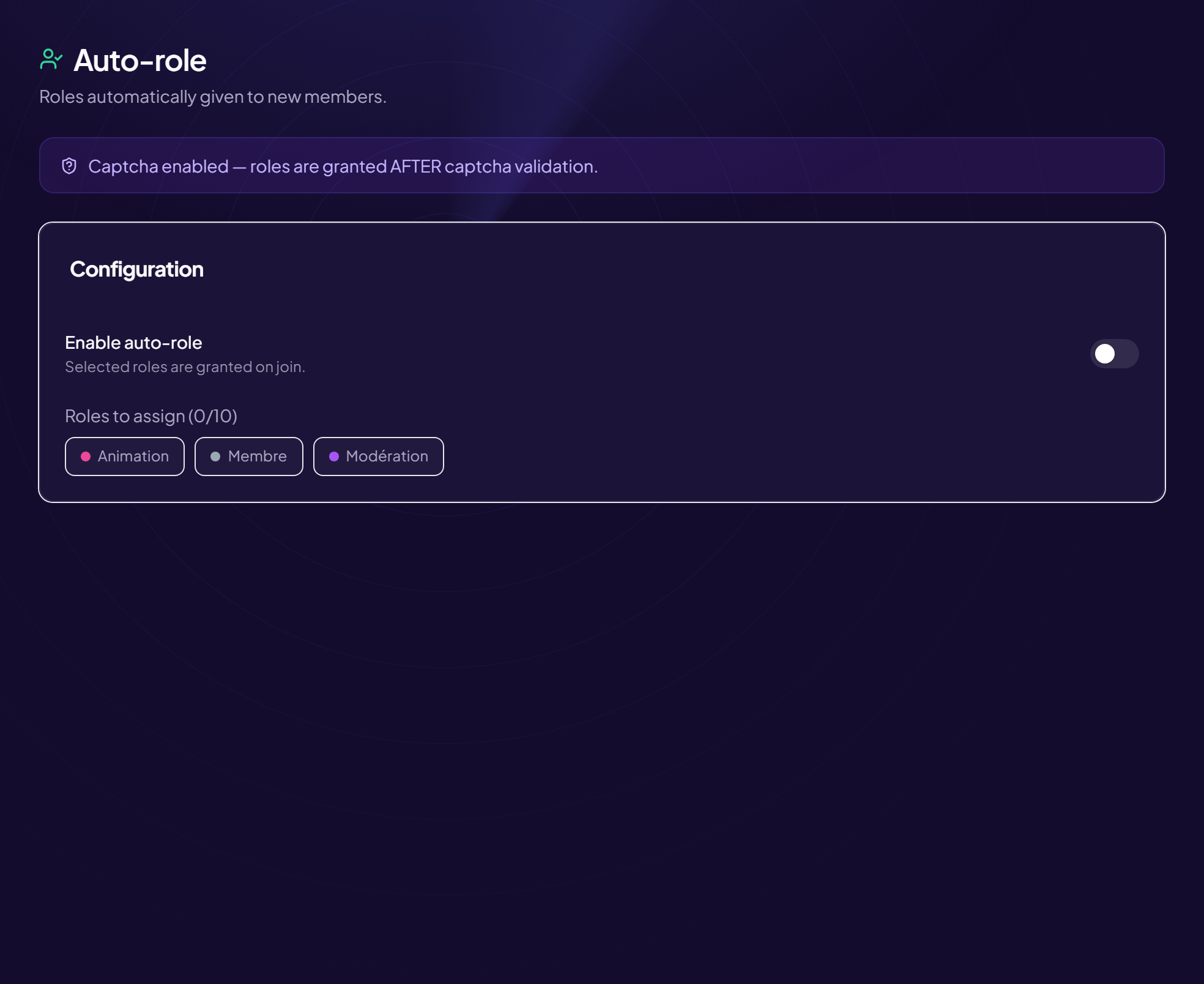
The auto-role automatically gives one or more roles to every new member, with no action from your team.
Turn it on
- Open the page Members › Auto-role menu.
- Turn on “Enable auto-role” Saved right away.
- Click the roles to assign
In the Roles to assign area, roles are small clickable pills. Select the ones you want (for example
@Membre). If no role is available: “No role available on this server.”
With the captcha
If the captcha is on, the page says so: roles are given after the captcha is passed. A member who has not passed the challenge gets nothing.
Essential condition: the role hierarchy
The bot can only give roles that are below its own in Discord’s list.
- Open Discord › Server Settings › Roles
- Drag OriusBot’s role above the roles to assign
- Save
If it does not work
- No role is given — is the switch on? Is at least one role ticked? Is the bot’s role above?
- The role arrives late — the captcha is on: this is normal.
- I don’t want everyone to pick their roles by hand — see the role selectors, to let everyone choose.
Do not give a powerful role
A role with moderation permissions given to every newcomer would be dangerous. Keep the auto-role for a simple role (for example “Member”).
Still stuck?
Contact support with the title of this article, the step where you are stuck and what you see on screen.
Contact support More articles: Welcoming membersLast checked: 13 November 2026.